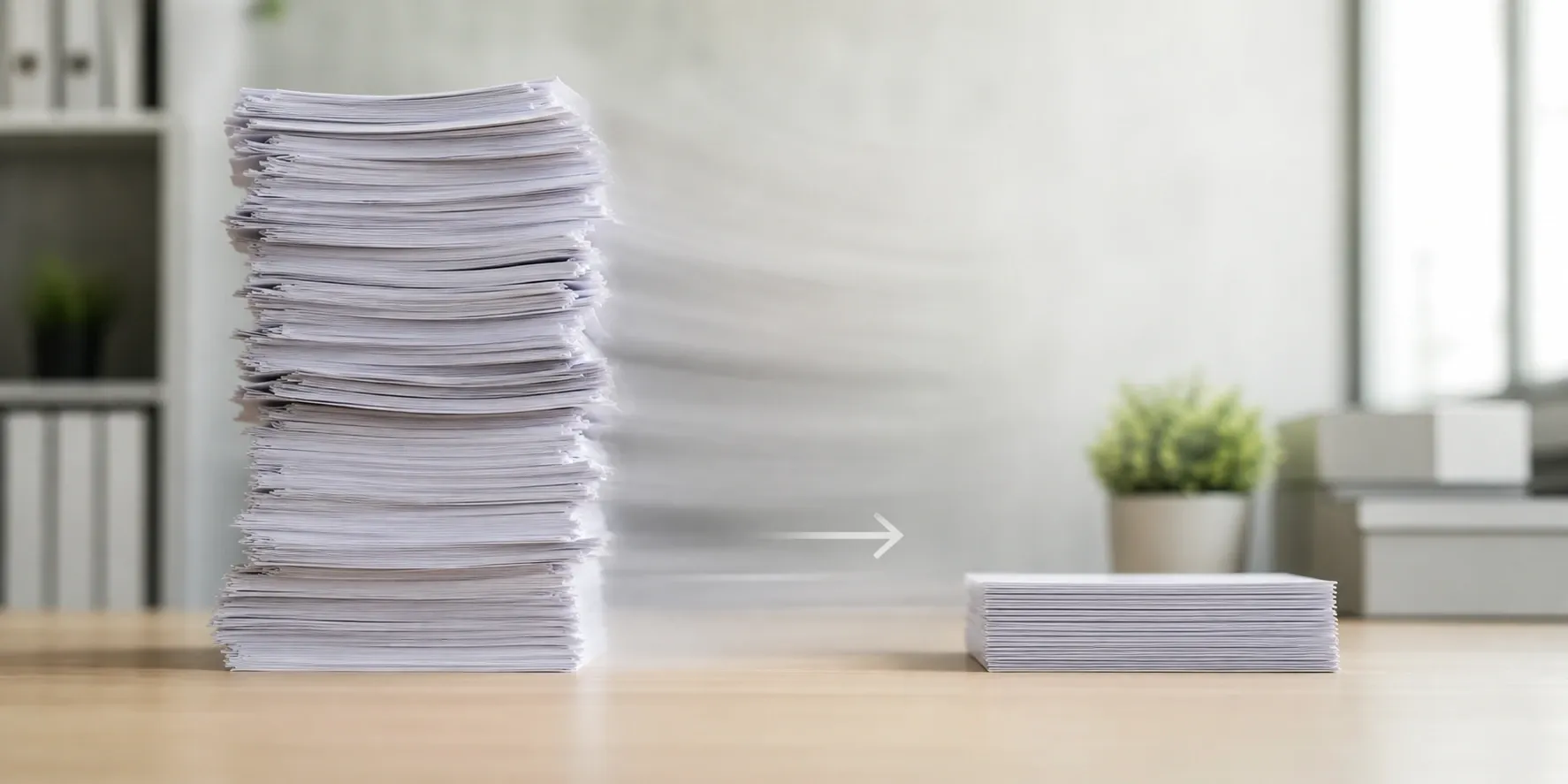
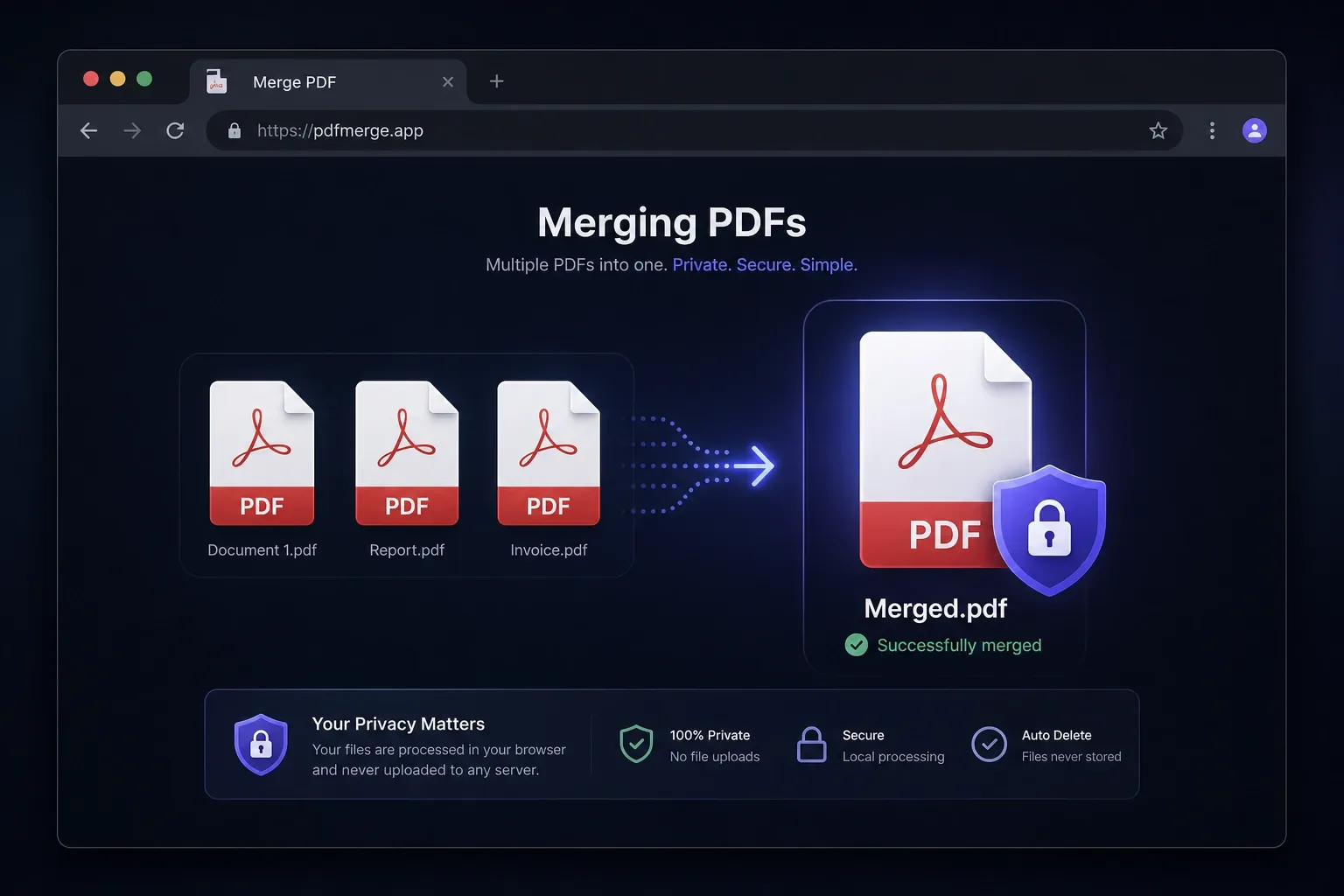
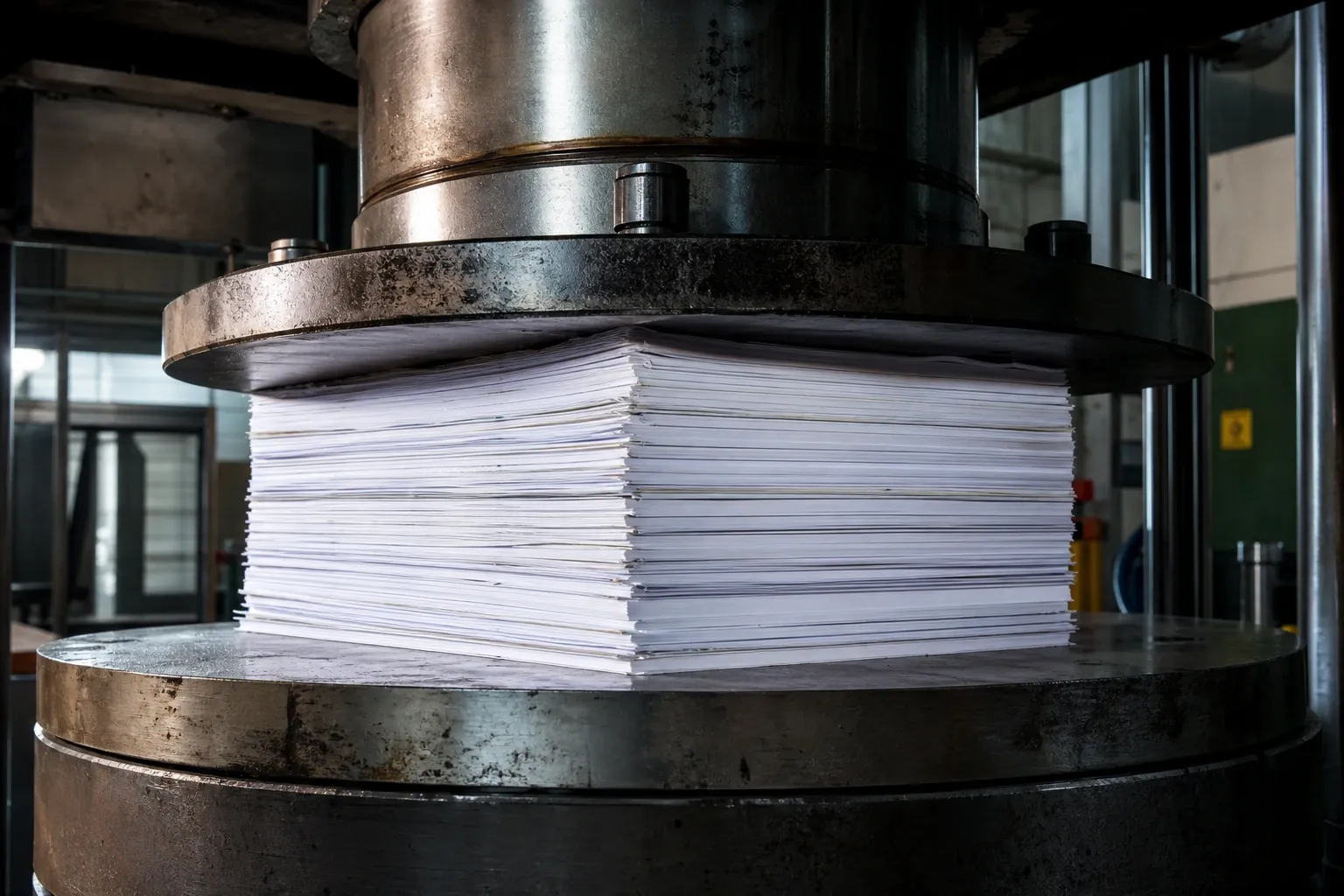
PDF (Portable Document Format) is the standard for sharing documents that look the same on every device. However, PDF files can become surprisingly large — especially those containing high-resolution images, embedded fonts, or complex vector graphics. PDF compression reduces file size while preserving the document's visual integrity, making it easier to share, upload, and store.
How PDF Compression Works
A PDF file is essentially a container that holds multiple types of content: text streams, images, fonts, metadata, and structural data. Compression targets each element differently. Images — which typically account for the largest portion of file size — are resampled and recompressed at lower quality or resolution. Font subsets are created to include only the characters actually used. Redundant metadata and unused objects are stripped. Content streams are deflated using algorithms like Flate (zlib) compression.
Understanding Quality Presets
Screen quality applies the most aggressive compression, targeting files destined for on-screen viewing. Images are downsampled to 72–96 DPI, and JPEG quality is reduced significantly. This preset can shrink files by 60–90% but may produce visible artifacts in printed output. Ebook quality balances size and clarity, downsampling images to 150 DPI — suitable for tablets, e-readers, and on-screen reading where some detail is appreciated. Printer quality preserves higher resolution (300 DPI) and applies lighter compression, resulting in smaller reductions but maintaining the fidelity needed for professional printing.
Common Sources of PDF Bloat
- Uncompressed images: Scanned documents often embed full-resolution TIFF or BMP images. A single scanned page can exceed 10 MB.
- Embedded full fonts: Some PDF generators embed entire font families rather than subsets, adding hundreds of kilobytes per font.
- Redundant objects: Editing a PDF multiple times can leave orphaned objects — old versions of pages, deleted annotations, and unused images — that still contribute to file size.
- High-resolution graphics: Illustrations and charts exported from design tools at print resolution (300+ DPI) may be unnecessary for digital distribution.
- Metadata: Extensive XMP metadata, document history, and embedded thumbnails add size with no visible benefit to the reader.
When to Compress PDFs
Email attachments are the most common trigger — many email providers limit attachment size to 10–25 MB. Compressed PDFs also load faster on web pages, reduce bandwidth costs for document portals, and consume less storage in cloud services. If you distribute PDFs through a content management system or learning platform, smaller files mean faster downloads and a better user experience.
Best Practices
Always keep an original uncompressed copy of important documents. Compression is a one-way process for lossy elements like images — you cannot restore discarded image data. Choose the quality preset that matches your distribution channel: screen for web and email, ebook for digital reading, printer for physical output. After compression, open the result and check critical pages (charts, diagrams, fine print) to ensure readability meets your standards.
For recurring workflows, establish a standard preset and verify it against your most demanding document type once. This eliminates the need to check every file individually and streamlines your document preparation process.
PDF/A and Archival Considerations
PDF/A is an ISO-standardized subset of PDF designed for long-term digital archival. It requires that all fonts be fully embedded, prohibits encryption, and forbids external dependencies like linked images or JavaScript. When compressing PDF/A documents, be aware that aggressive compression may strip metadata or subset fonts in ways that break PDF/A compliance. If archival conformance is critical — for legal records, government filings, or institutional repositories — verify the compressed output with a PDF/A validator before replacing the original. For general-purpose documents where archival compliance is not required, standard compression presets work without restriction.
Scanned Documents and OCR-Processed PDFs
Scanned documents are among the largest PDF files because each page is essentially a full-resolution raster image. A typical letter-size page scanned at 300 DPI produces a 25 MB uncompressed TIFF image, and a 20-page scanned document can easily exceed 100 MB. Compression is particularly effective for these files because the screen preset downsamples images to 72–96 DPI, which is sufficient for on-screen reading. PDFs that have undergone OCR (Optical Character Recognition) contain a hidden text layer beneath the scanned image. This text layer is preserved during compression since it is stored as vector data, so searchability and copy-paste functionality remain intact even after aggressive image compression. For scanned archives, processing files through this compressor before uploading to document management systems dramatically reduces storage costs and improves download speeds for end users.
When Compression Helps Less
Not every PDF shrinks dramatically. Text-heavy PDFs generated directly from Word processors, design apps, or reporting systems are often already efficient because text streams and vector drawings are compact by nature. If the document contains few embedded images, the compressor has less raw material to optimize. In those cases, a 10–25% reduction may already be a good result, and trying to force larger savings can produce visible degradation in charts, screenshots, or scanned signatures.
After compression, inspect the pages that matter most: tiny legal text, signatures, engineering diagrams, screenshots, and barcode or QR-code regions. Those are the first places where aggressive presets show trade-offs. A quick visual review is usually enough to decide whether the chosen preset is appropriate for email, portal upload, internal archiving, or print distribution.