Deep work needs a quiet surface. When you sit down to untangle a hard problem, the enemy is rarely the problem itself — it is the tab strip along the top of the screen, the badge counting unread mail, the second window peeking out from behind the first, all of it whispering that something else deserves your attention. A distraction-free whiteboard closes those doors. It takes over the whole screen, hides every scrap of browser and operating-system chrome, and leaves you with one thing: a blank canvas and a pen. This guide is about that mode specifically — not how a whiteboard works in general, but how a full-screen, minimal one becomes a room you can think in, and why running everything locally is what makes it a space you can trust with an unfinished idea.
Why Distraction-Free Matters for Thinking
Solo thinking and presenting are different jobs, and they fail for different reasons. A presentation fails when the audience is confused; a thinking session fails when you break your own concentration. Every visible interface element is a tiny off-ramp. A tab you half-remember opening, a clock ticking in the corner of the browser, a notification sliding in — each one is an invitation to context-switch, and getting back to where you were costs far more than the seconds the interruption took. The value of a distraction-free board is not that it looks tidy. It is that it removes the off-ramps, so the path of least resistance is to keep going.
There is a quieter benefit too. A blank, edge-to-edge canvas gives an unfinished idea somewhere safe to be ugly. Thinking out loud on a surface means drawing a box, deciding it is wrong, moving it, re-pointing an arrow, and crossing something out — and a screen full of other people's finished work is a poor place to do that. When nothing else is on the screen, the messy first draft has the whole display to itself, and that permission to be rough is exactly what early thinking needs.
What Full-Screen Actually Removes
The full-screen whiteboard uses the browser's native Fullscreen capability — the same Fullscreen API that video players use — to promote the canvas so it fills the entire display. The moment it engages, the tab strip, the address bar, your bookmarks, and the operating system's taskbar all step out of the way. What is left is the drawing surface running edge to edge, with the tools tucked to the side rather than framed inside a window competing for the corner of your eye.
That is a bigger change than it sounds. In a normal window, the board is one thing among many on your screen; in full-screen, the board is the screen. There is nowhere to glance and nothing to click away to without a deliberate keystroke. On a laptop that means fewer excuses to break the session; on a large monitor it means a genuinely expansive canvas instead of a letterbox. Underneath, it is the same engine as the everyday online whiteboard — identical pen, shapes, sticky notes, text and exports — simply framed to fill the screen and start clean. Nothing about the toolkit shrinks when you go edge to edge; only the surrounding clutter disappears.
Open Straight Into a Blank Canvas
Friction is the other thing that breaks focus, so the fastest way in skips every welcome step. Open the board app and it loads directly onto a blank surface with the pen already selected — no splash screen, no "create a new document" dialog, no account form standing between the impulse to think and the first mark. You are drawing immediately, and because it is a normal web page you can bookmark it, pin it to a tab, or park it on a second monitor so a clean canvas is always one click away.
There is no sign-up anywhere in this. You do not hand over an email, invent a password, or join a list to sketch a single diagram, which matters more for focus than it first seems: an account wall is itself a distraction, a small errand between you and the work. And because the app restores your autosaved board when it opens, coming back tomorrow does not mean starting over — yesterday's scene is waiting exactly as you left it. If you would rather begin from the full tool page, with the guide, examples and every control on show, open the full-screen whiteboard and press the fullscreen button there; both paths land on the same edge-to-edge canvas.
A Keyboard-Driven Flow That Keeps You in the Canvas
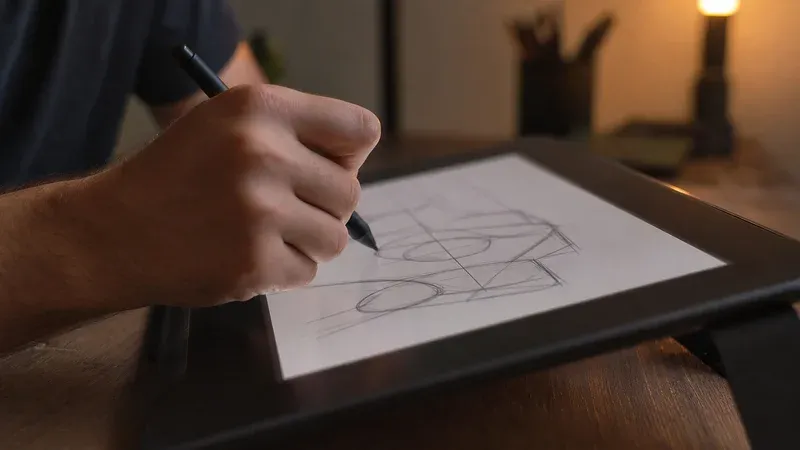
Concentration survives when your hands stay on the work. Reaching for a menu, hunting for a button, and clicking through a submenu each pull your attention out of the canvas and into the interface. A distraction-free board is built to keep you in flow instead: single-key tool shortcuts switch between the pen, the eraser, shapes and text without a trip to a toolbar, and the usual undo and redo chords let you experiment freely — try a layout, back it out, try another — without ever breaking stride. Because those actions live under your fingers, the tool fades into the background and the drawing stays in front.
The strokes themselves are smooth vector paths rather than a flat picture, so nothing you draw is baked in. A freehand line stays crisp and editable, a box you nudge keeps its clean edge, and smart shape recognition can tidy a rough rectangle or ellipse into a clean one as you draw — the loose gesture becomes a proper object you can then move, resize, rotate or recolor. Wheel-zoom and space-bar panning let you drop into a detail and pull back to the whole map without leaving the surface, a dot grid and snapping keep things aligned when you want them to be, and rulers help when precision matters. The net effect is a canvas that follows the pace of a mind at work instead of asking it to slow down for the interface.
Autosave: A Session That Survives
Nothing kills a train of thought like losing it. A distraction-free board removes that fear entirely by autosaving to your browser's own storage after every change. Leave full-screen, switch monitors, close the tab, or shut the laptop, and your work is not gone — reopen the board and your last scene is restored, right down to where you left the arrows. There is no save button to remember and no moment where an unsaved sketch is one accidental close away from vanishing.
When an idea needs to outlive this browser, you export it deliberately: a JSON scene you can reopen and keep editing later, a lossless SVG, or a print-ready PNG or PDF. There is also a copy-to-clipboard option that drops a PNG straight into your notes, a document, or a chat. The autosave keeps the working session alive between sittings; export is how a finished thought steps out into the rest of your tools. Both happen without a server ever being involved.
Private by Default, Which Is Why You Can Think Freely
Early ideas are unguarded — half-formed plans, names you have not decided on, the shape of something you are not ready to show anyone. A thinking surface only works if it feels safe enough to hold that, and this one is built so it can. Everything runs client-side in your browser: every stroke, shape and export is created locally, the board file is never uploaded, never stored on a server, and never tied to an account. Privacy here is not a policy you have to read and trust; it is simply where the data lives — on your machine, and nowhere else.
That local-first design is quietly part of what makes deep focus possible. There is no sync spinner waiting on a network, no login session to time out mid-thought, nothing to reconnect. The board just works, online or off, and the surface you are thinking on answers only to you.
The Honest Limits
A private, distraction-free board is the right tool for a large slice of work, but it is fair to name the trade-offs. Because the board stays on your device and is never uploaded, there is no automatic cloud sync between machines and no live multi-user co-editing — those are inherently server-based features, since something in the middle has to relay everyone's changes. The bridge across devices is deliberate: you export the scene and move it yourself. For solo focus and deep work — the whole point of a distraction-free surface — that trade is overwhelmingly worth it, and export closes the gap on the rare occasion you need to hand the work off. If your thinking regularly turns into diagrams to share, our guide to visual thinking with diagrams, flowcharts and sketching covers the craft of making them legible, and if you want the presenting and teaching side of full-screen, the companion piece on a free full-screen online whiteboard goes there in depth.
Clear the Screen and Begin
The fastest way to feel the difference is to open a full screen of blank canvas and notice what is no longer there: the tabs, the badges, the second window, the low hum of everything else. Pick one thing you are genuinely stuck on right now — a decision, a rough plan, a system with a few moving parts — launch the board app, and put it on the canvas. Draw a box for each piece, connect them with arrows, move things until the shape feels right. It runs in your browser, autosaves locally, needs no sign-up, and never uploads a thing — a quiet screen to think on, exactly when the thinking is hard.