Online Whiteboard
NEW!

Online Whiteboard

A free online whiteboard to draw, sketch and diagram in your browser. Freehand pen, highlighter, shapes, text and images — export to PNG, SVG, PDF or JSON.

Whiteboard & Drawing
Scroll to zoom · Hand tool, Space or middle-drag to pan

🔒 Everything is drawn and exported in your browser. Your board never leaves your device.

⛶ Open the full-screen whiteboard app

Keywords

online whiteboardfree whiteboarddraw onlinedrawing toolsketch onlinediagram makerannotate screenshotbrowser whiteboardrotate shapessticky notesdashed arrow

Need something else?

How to use

1

Pick a tool from the toolbar — the pen and highlighter draw smooth freehand vector strokes, or choose a shape (rectangle, rounded rectangle, ellipse, line, arrow, block arrow, triangle, diamond, sticky note, or an elbow right-angle connector).

2

Choose a color, stroke width and line style (solid, dashed or dotted); for arrows, pick the head at each end (none, triangle or dot), then draw directly on the board with your mouse, trackpad or touchscreen.

3

Add text or a sticky note by clicking, or drop in a picture with Add image; use Select to move, rotate, resize, align, group, lock, reorder or delete anything — and let smart shape recognition snap a rough sketch to a clean shape.

4

Zoom with the mouse wheel and pan with space or middle-drag, snap to other shapes with alignment guides, undo and redo freely, press the fullscreen button for a distraction-free canvas, and try an Example to see a ready-made board.

5

Export your board as a PNG or PDF (screen, 2×, or print resolution), a fully scalable SVG, or a JSON scene you can re-open and keep editing later — or copy it straight to the clipboard as a PNG.

Features

Freehand Pen, Highlighter & Object Eraser

The pen and highlighter lay down smooth vector strokes — a smoothed point list you can later select, move, recolor, rotate and reorder like any other object. The highlighter is simply a wider, semi-transparent stroke, and the eraser is an object eraser that removes the whole stroke or shape you touch.

Shapes, Connectors, Sticky Notes, Text & Images

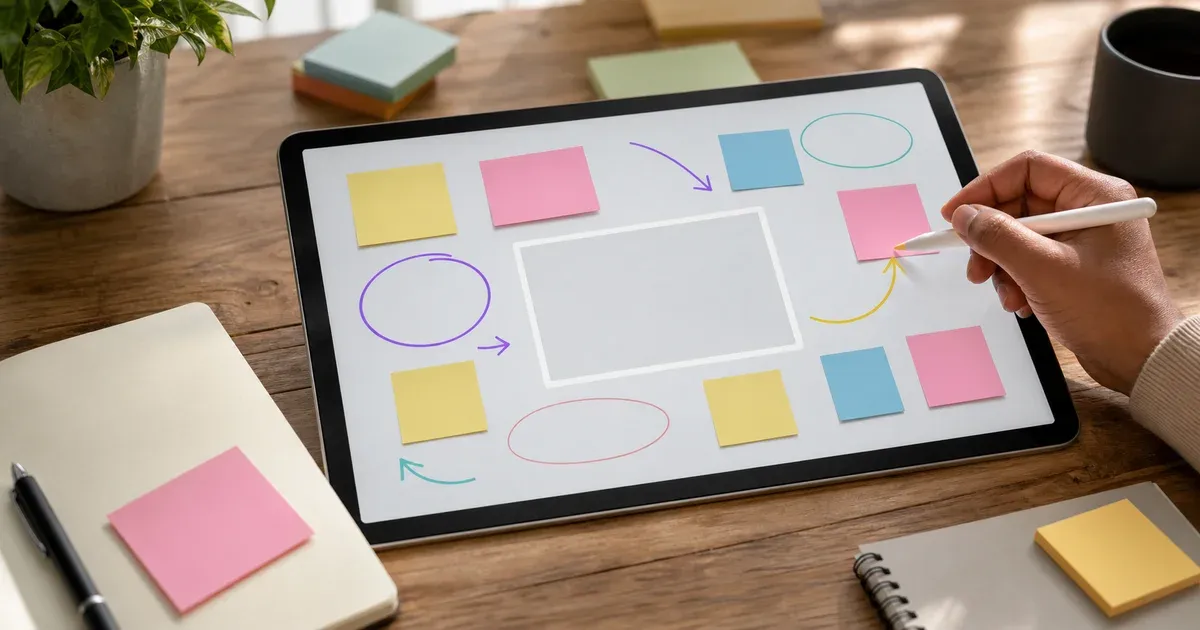
Rectangles, rounded rectangles, ellipses, lines, arrows, block arrows, triangles, diamonds, sticky notes and elbow (right-angle) connectors are all editable objects, alongside text labels and imported images. Set each shape's line style (solid, dashed or dotted) and pick the arrowhead at each end (none, triangle or dot).

Arrange, Rotate, Align, Group & Lock

Rotate any object with a drag handle (hold Shift to snap to 15° steps), align and distribute a multi-selection, resize a whole selection at once, layer with bring-to-front and send-to-back, group and ungroup, and lock a shape so it can't move, resize or change.

Undo/Redo, Autosave & Restore

Every action is reversible with a full undo/redo history and keyboard shortcuts. Your latest board is autosaved locally so you can restore it on your next visit — no account required.

Export to PNG, SVG, PDF & JSON — or Copy

SVG is fully vector — every freehand stroke becomes a real path element. PNG and PDF are rendered from that vector to a flat image at screen, 2× or 300 DPI A4/A3, JSON re-opens for further editing, and you can copy the whole board to the clipboard as a PNG.

Why Choose This Tool?

Your Board Never Leaves Your Device

Every stroke, shape, imported image and export is created entirely in your browser on the HTML canvas. Nothing is uploaded, nothing is stored on a server, and nothing is seen by anyone but you. That makes it safe for private notes, work-in-progress diagrams, and screenshots you would never want sitting in a stranger's upload folder. Close the tab and, apart from the local autosave you control, nothing remains.

One Unified Vector Scene

Most quick drawing tools force a choice between a rigid shape editor and a raw pixel brush. Here everything is one vector scene: shapes, connectors, sticky notes, text, images and even freehand pen and highlighter strokes are all structured objects you can reselect, move, rotate, recolor, layer and rearrange. You get the precision of vectors and the expressiveness of a brush, with none of the pixel lock-in — the eraser removes whole objects, not smudges of paint.

Exports That Actually Fit the Job

Every element — including freehand strokes — serializes losslessly to SVG as a true vector, so a diagram scales from a thumbnail to a wall poster without a single blurry edge. Need a flat image? PNG and PDF are rendered from that vector to a flat image at standard, 2× and print resolution, sized by a memory-safe engine so a large export never silently produces a blank image. You can also copy the board straight to the clipboard as a PNG, and the JSON scene format means a board is never a dead end — reopen it and keep working.

Fast, Keyboard-Friendly and Accessible

The toolbar exposes single-key shortcuts for every core tool, undo/redo on the usual Ctrl/Cmd+Z and Shift+Z chords, layering with Ctrl+] / Ctrl+[, group with Ctrl+G, lock with Ctrl+Shift+L, Delete to remove a selection, and arrow keys to nudge (hold Shift for a bigger step). Controls are large, touch-friendly targets, the active tool is announced to assistive technology, and a fullscreen mode turns the whole screen into an immersive canvas when you want to focus.

How an Online Whiteboard Works: One Vector Scene, Smooth Freehand Strokes, and Clean Exports

An online whiteboard has to do two very different things at once. It must feel like a marker on glass — instant, fluid, forgiving of a shaky hand — while also behaving like a document you can edit, rearrange and export cleanly. This tool solves that with a single unified vector scene: every mark on the board, from a rectangle to a freehand pen stroke, is a structured object rather than a patch of pixels. Understanding how that one scene is stored, edited and exported explains why every element stays editable, why the pen still feels natural, and why the exports come out crisp at any size.

The Scene: Everything is Data, Not Pixels

When you draw a rectangle, an arrow, a sticky note, a line of text or a freehand stroke, the board does not "paint" it onto a fixed grid of dots. It records an object — its kind, position, size, color, stroke width, line style and fill — in an ordered list called the scene. Because each element is data, you can later select it, move it, rotate it, recolor it, change its stacking order, or delete it without disturbing anything underneath. Every frame, the tool redraws the whole scene from this list onto an HTML <canvas>, so what you see is always a faithful picture of the underlying data.

Hit-Testing: Knowing What You Clicked

Selecting an object requires answering a geometric question: is the cursor on this shape? The tool uses exact hit-testing per kind. Rectangles, sticky notes and images test against their bounding box; ellipses use the ellipse equation; triangles and diamonds use a point-in-polygon test; and open shapes — lines, arrows, connectors and freehand strokes — measure the perpendicular distance from the cursor to each segment, widened by the stroke thickness so thin lines are still easy to grab. Objects are tested from top to bottom, so a click always selects the one visually on top. The same hit-testing powers the object eraser: instead of scrubbing away pixels, it finds the whole stroke or shape under the cursor and removes it in one piece.

Smooth Freehand Strokes as Vectors

Freehand drawing is different from placing a shape, but the result is still a vector object. A pointer emits a stream of positions, and connecting them with straight segments would look visibly jagged. To keep the line smooth, the stroke is drawn through the midpoints of consecutive samples using quadratic curves, and a Catmull-Rom spline from the shared geometry library rounds the path where it needs to be resampled. The finished stroke is stored as a draw object — a smoothed point list — which means a pen or highlighter line is fully selectable, movable, recolorable, rotatable and reorderable like any other object. The highlighter is simply a wider, semi-transparent stroke; there is no separate pixel surface anywhere in the pipeline.

Arranging, Rotating and Grouping

Because every mark is an object, the board offers real editing power over your layout. Select something and a rotation handle appears above it — drag to rotate, and hold Shift to snap to 15° steps; it works for shapes, text, sticky notes and images alike. Select several objects at once to align and distribute them, or resize the whole selection together (hold Shift to keep proportions). Z-order controls bring an object to front, forward, backward or to back; you can group and ungroup objects so they move as one; and you can lock an object to protect it from moving, resizing or editing. A quick rough sketch can be tidied automatically by smart shape recognition, which snaps a scribble to a clean shape. While you draw, snapping to other objects' edges and centers shows alignment guides, and an optional dot grid and rulers keep everything tidy. Zoom with the mouse wheel and pan with the space bar or a middle-drag to move around a large board.

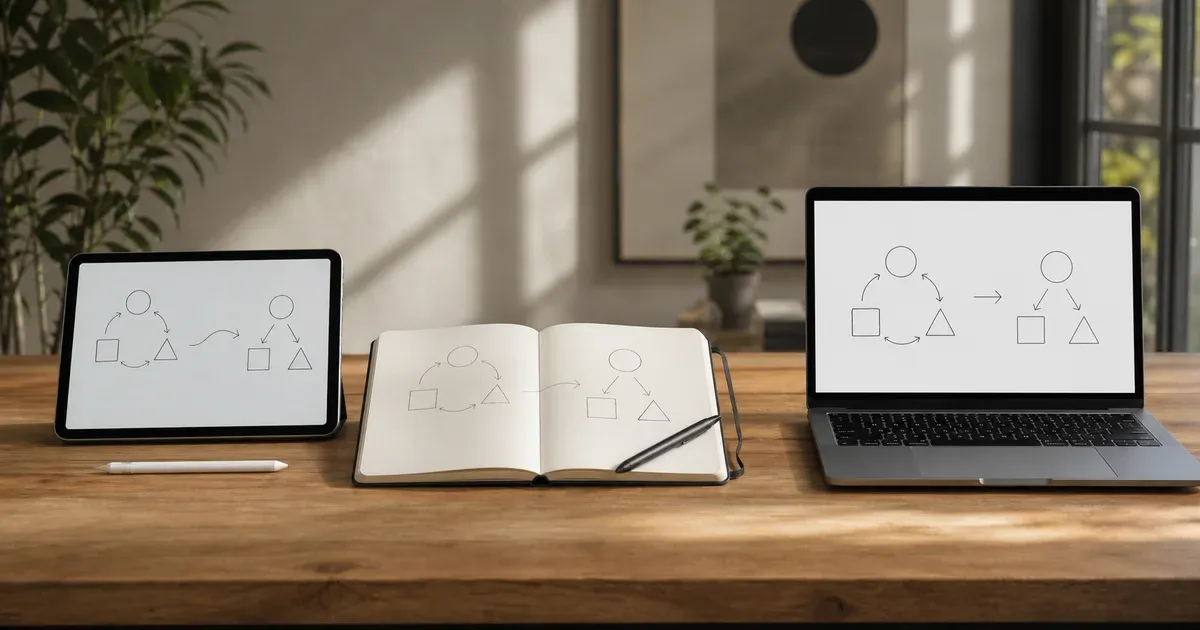
Exporting: One Scene, Four Formats

All exports flow from a single serialized description of the board, and because that description is entirely vector, so are the exports. For SVG, the scene is turned into a standalone vector document: every element becomes a real SVG element — a rectangle is a rect, an ellipse an ellipse, a triangle or diamond a polygon, a line a line, and a freehand stroke a path, alongside text and image. There is no flattened image anywhere in the file, so the SVG scales to any size with no loss and opens for editing in tools like Inkscape or Illustrator. For PNG and PDF, that same vector SVG is drawn onto an off-screen canvas at your chosen output size and read back as a flat image; the PDF simply embeds that image on a single page. Output dimensions are computed by a sizing engine that supports exact pixels, a 2× option, and print sheets (A4/A3 at 300 DPI), always clamped to a memory-safe ceiling so an over-large request never produces a blank canvas on mobile browsers. You can also copy the board to your clipboard as a PNG for an instant paste into another app. Finally, the JSON export writes the whole scene to a file you can reopen to continue editing; on load it is validated so a corrupt or older file can never load a broken board.

Autosave, Fullscreen and Keyboard Flow

Because losing a sketch is painful, the board debounces a copy of the current scene to your browser's local storage after each change, and offers to restore it the next time you visit — entirely on your device, with no account. A native fullscreen mode expands the canvas to fill the screen for focused work, and there is also a dedicated full-screen whiteboard if you prefer to start immersive. Single-key shortcuts (pen, highlighter, eraser, shapes, text) plus the familiar undo/redo chords, layering with Ctrl+] and Ctrl+[, group with Ctrl+G, lock with Ctrl+Shift+L, Delete to remove a selection, and arrow keys to nudge keep your hands on the drawing rather than the menus.

Practical Tips

  • Use the pen for notes and the highlighter to emphasize without hiding what is underneath — both stay editable, so you can recolor or move a stroke later.
  • Reach for shapes, connectors and sticky notes when you want tidy diagrams — set a dashed or dotted line style, choose the arrowheads, and re-point a connector at any time.
  • Group the parts of a diagram so they move together, and lock a background image so you can annotate over it without nudging it.
  • Export SVG for anything you might print large or embed in a document; use PNG for a quick share, PDF for a printable single page, or copy straight to the clipboard.
  • Save a JSON scene for work in progress so you can pick up exactly where you left off.

Frequently Asked Questions

Is my drawing uploaded to a server?

No. The whiteboard runs entirely in your browser on the HTML canvas. Your strokes, shapes, imported images and every export are created locally on your device and are never transmitted to any server. The only data that persists is the local autosave in your own browser, which you can clear at any time.

What can I draw and add to the board?

You can draw freehand with a pen or highlighter and add shapes: rectangle, rounded rectangle, ellipse, line, arrow, block arrow, triangle, diamond, sticky note and elbow (right-angle) connector. Each shape can use a solid, dashed or dotted line style, and arrows let you pick the head at each end (none, triangle or dot). You can also place text labels and import images. Everything — including freehand strokes — is an editable object you can select, move, rotate, recolor, reorder and delete.

Can I rotate, align, group and lock objects?

Yes. Select an object and drag the rotation handle above it to rotate (hold Shift to snap to 15° steps) — this works for shapes, text, sticky notes and images. With several objects selected you can align and distribute them and resize the whole selection at once. You can change stacking order (bring to front / send to back), group and ungroup objects so they move together, and lock a shape to protect it from moving, resizing or editing.

Which formats can I export to?

Four, plus clipboard: PNG (flat image), SVG (fully scalable vector), PDF (printable single page), and JSON (the editable scene) — and you can copy the board directly to the clipboard as a PNG. PNG and PDF offer standard, 2× and print-resolution presets (A4 or A3 at 300 DPI); SVG stays crisp at any size because every element, including freehand strokes, is a true vector.

Can I save a board and continue editing it later?

Yes. Export the board as a JSON scene file and use Open JSON to load it back in and keep editing. Separately, the tool autosaves your latest board to your browser's local storage, so when you return it can offer to restore your unsaved work.

What is the difference between the pen strokes and the shapes?

Only how they are created. A pen or highlighter stroke is captured as a smoothed freehand path, while a rectangle or arrow is a defined geometric shape — but both are stored as vector objects in the same scene, so freehand strokes are just as selectable, movable, rotatable and recolorable as any shape. The eraser is an object eraser: it removes the whole stroke or shape you touch rather than rubbing out pixels.

Does it work on a touchscreen or tablet?

Yes. The board uses pointer events, so it works with a mouse, trackpad, touchscreen or stylus. The toolbar buttons are large, touch-friendly targets, and the layout adapts to small screens.

How do undo and redo work?

Every change — a stroke, a new shape, a move, a clear — pushes a snapshot onto a history stack. Undo (Ctrl/Cmd+Z) and Redo (Ctrl/Cmd+Shift+Z) step through that history, and the toolbar buttons reflect whether an undo or redo is available. Press Delete to remove the selected shape.

Why does the PNG export offer print sizes?

Screen resolution is fine for sharing, but printing needs more pixels. The print presets render your board at 300 DPI onto A4 or A3 dimensions so lines stay sharp on paper. All sizes pass through a memory-safe limit so an over-large export never fails silently with a blank image.

Is the SVG export really editable elsewhere?

Yes, completely. Every element exports as a standard SVG element — shapes as rect/ellipse/polygon/line, text as text, and freehand pen and highlighter strokes as path elements. There is no flattened image anywhere in the file, so you can open the whole board in vector editors like Inkscape or Illustrator and edit any part of it.

Do I need an account or an internet connection to draw?

No account is ever required. After the page loads, the drawing and exporting happen locally, so you can keep working even if your connection drops. Nothing about your board is sent anywhere.

Related Articles

Learn more