
There is a moment — a class about to start, a point to make mid-meeting, an idea that will vanish if you do not catch it — when you want a blank canvas and nothing else. Not a window squeezed between a dozen tabs, but the whole screen, edge to edge, with a pen already in your hand. A free full-screen online whiteboard gives you exactly that, with no sign-up and no install: you open it and the screen becomes the board. This guide explains what full-screen really adds, how to launch it in a second, the use cases it was built for — focus, presenting, teaching, and touchscreens — and how your work stays safe without ever being uploaded.
What "Full-Screen" Actually Adds
A whiteboard in a normal browser window is surrounded by distractions: tabs, the address bar, bookmarks, the operating system's taskbar, and whatever notification decides to slide in at the worst moment. Full-screen mode removes all of it. Using the browser's built-in Fullscreen capability, the canvas is promoted to fill the entire display, and every piece of chrome steps out of the way. What remains is the drawing surface and your ideas.
That sounds cosmetic, but it changes how the tool feels to use. When the board is the whole screen, there is nothing to click away to and nothing competing for the corner of your eye. For solo focus, that is fewer excuses to break concentration. For a projector or a shared call, it means the audience sees a clean canvas rather than your browser and your bookmarks. And on a touch display, hiding the browser frame makes a web page behave like a dedicated app — you draw with a finger and forget it is a website at all.
Under the hood it is the same drawing engine as the general online whiteboard — the same freehand pen, auto-shapes, sticky notes, text and exports — simply framed to fill the screen and start instantly. If your work is mostly note-taking in a normal window, that page is the natural home; if the board is the thing you or a room needs to look at, full-screen is the mode built for it. Nothing about the toolkit changes when you go edge to edge; only the distractions around it disappear.
Starting in a Second: No Sign-Up, No Setup
The whole point of a quick board is that it is quick, so the fastest way in is a dedicated app that opens straight into the canvas. Open the full-screen board app and it loads directly onto a blank surface with the pen already selected — no welcome screen, no "create a new document," no account form. You are drawing immediately.
Because there is no sign-up, there is no wall between the impulse to draw and the drawing. You do not hand over an email, invent a password, or join a mailing list to sketch a single diagram. And because the app is a normal web page, you can bookmark it, pin it to a tab, or drop it on a second monitor, and it is always one click from a full screen of blank canvas. If you prefer to start from the full tool page — with the guide, examples and every control — open the full-screen whiteboard and press the fullscreen button there instead. Either path gets you to the same edge-to-edge canvas.
Focus: A Screen With Nothing to Distract You
The simplest use of full-screen is also the most underrated: thinking without interruption. When you are mapping out a problem, sketching a rough plan, or just working an idea loose, every visible tab is a small invitation to context-switch. A full-screen board closes those doors. There is no inbox in the corner, no half-read article one tab over, no clock but the one on the wall.
Pair that with a smooth vector pen — freehand strokes that stay crisp and editable — and the board becomes a genuine thinking space. You can draw, step back, move a box, re-point an arrow, and keep going, all without the screen ever reminding you of the forty other things you could be doing. When the session is done, you leave full-screen and your board is still there, autosaved.
Presenting and Screen-Sharing
Full-screen is where a whiteboard turns into a presentation surface. On a projector or a shared video call, an edge-to-edge canvas lets you build an idea live instead of clicking through finished slides. Annotate over a diagram as you talk, draw an arrow to the exact thing you are describing, or grow a sketch step by step so the room follows your reasoning rather than a static picture.
The drawing engine is designed to hold up under this. Strokes and shapes are smooth vector objects, so they stay sharp when projected or squeezed through a video call's compression, and because they are real objects you can nudge, rotate, align, re-color and reorder them mid-presentation without redrawing. Mouse-wheel zoom and space-bar panning let you move between the big picture and a single detail without ever leaving the canvas — much closer to how thinking actually moves than a fixed slide deck. When you are done, export a PNG or PDF of the finished board and send it round as the record of what you discussed.
Teaching and Online Tutoring
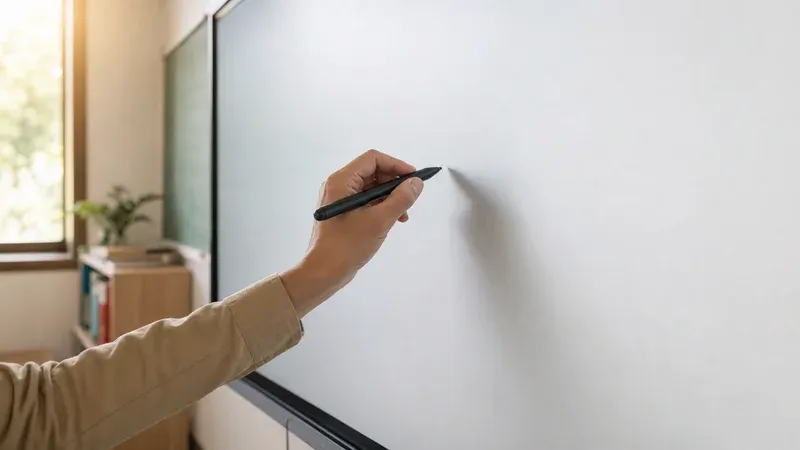
For teachers and tutors, a full-screen board is the closest thing to a real classroom board that a browser can offer. Work a maths problem line by line, sketch a diagram a textbook only ever shows finished, or annotate a shared worksheet while a remote class watches your screen. Because the controls are large, touch-friendly targets, it is comfortable on an interactive whiteboard or a tablet, and the board announces its active tool and state changes to assistive technology, so it does not become a barrier for students who rely on a screen reader.
The teaching workflow closes neatly at the end of the lesson: export the board to a PDF or PNG and hand it to students as notes. They get the exact board they watched you build, not a cleaned-up reconstruction — the arrows, the crossings-out, the order you revealed things in. And because nothing was uploaded, a worksheet showing a student's name or a class's work never left your machine.
Kiosks, Touchscreens and Second Monitors
Full-screen also suits fixed and multi-screen setups. On a kiosk or a wall-mounted interactive display, hiding the browser chrome makes the page feel like a purpose-built drawing app, and the pointer-based input means finger drawing just works. In a two-monitor workflow, you can leave the bookmarked board full-screen on a second display as a permanent scratch surface — glance at it, draw on it, and keep your main work on the primary screen. Because the board restores from autosave, that second-screen canvas keeps whatever you left on it between sessions, with no manual saving.
Your Work Stays Private and Never Uploaded
Full-screen makes a board feel exposed — it is often on a projector or being shared with a room — but the data behind it never leaves your device. Every stroke, shape and export is created locally in your browser on the HTML canvas. The audience sees your screen, but the board file itself is never uploaded, never stored on a server, and never tied to an account. Privacy here is not a policy you have to trust; it is simply where the data lives.
Continuity is handled the same local way. The board autosaves to your browser's storage after every change, so leaving full-screen, switching monitors, or closing the tab does not lose your work — reopen the board app and your last scene is restored. When something needs to outlive this browser, you export it: a JSON scene to reopen and keep editing, a lossless SVG, or a print-ready PNG or PDF. There is also a copy-to-clipboard option that drops a PNG straight into your slides or chat. If you want a deeper look at picking the right export for the job, our guide on exporting a whiteboard to PNG, SVG and PDF walks through each format.
The Honest Limits
A private, full-screen board is the right tool for a huge range of work, but it is fair to be clear about the trade-offs. Because your board stays on your device and is never uploaded, there is no automatic cloud sync between machines and no live multi-user co-editing — those are inherently server-based features, since something in the middle has to relay everyone's changes. The bridge across devices is deliberate: you export the file and move it yourself. For solo focus, presenting from one screen, and teaching over a shared screen, that trade is overwhelmingly worth it, and export closes the gap whenever you do need to hand the work off. If you specifically value the no-account angle, our guide to a free online whiteboard with no sign-up covers that side in more depth.
Open It Full-Screen and Start
The best way to understand a full-screen whiteboard is to open one and notice what disappears: the tabs, the clutter, the barriers. Launch the full-screen board app and start drawing on a blank edge-to-edge canvas, or open the full-screen whiteboard tool page for the full toolkit and press fullscreen there. Whichever you pick, it runs in your browser, autosaves locally, and never uploads a thing — a clean screen to think, present and teach on, exactly when you need it.