Open a modern online whiteboard and the surface seems to go on forever — you pan in any direction, zoom out until your sketch is a speck, then zoom back in and every line is still razor-sharp. That "infinite canvas" is not magic and it is not a single enormous image. Underneath is a small set of elegant ideas from computer graphics: a coordinate system that is separate from your screen, a virtual camera you move instead of the drawing, and a scene stored as editable objects rather than colored pixels. This guide explains how those pieces fit together, so the next time a rough sketch snaps into a clean rectangle you will know exactly what just happened — and why doing it all inside your browser keeps your work private.
The Infinite Canvas Is a Coordinate System, Not a Big Picture
The first thing to unlearn is the idea that the canvas is a giant sheet of paper the app has to store somewhere. It is not. The "infinite" canvas is simply a mathematical coordinate space — an endless grid of positions described by numbers. A shape does not live "at the top-left of the page"; it lives at a coordinate like x = 4200, y = -1750. Those numbers can be as large or as negative as you like, which is why you never hit an edge. Nothing is allocated until you actually draw something, and what gets stored is just the handful of objects you created, each remembering its own position.
This is the crucial trick behind the sense of limitless space. The app is never holding a picture the size of a football field in memory. It holds a short list of things — this box here, that arrow there, this line of text over there — and it draws only the ones that currently fall within the part of the coordinate space you happen to be looking at. Scroll a mile away to an empty region and there is quite literally nothing to draw, so it costs nothing.
World Coordinates vs Screen Coordinates
Because the canvas and your screen are two different things, whiteboards keep two separate coordinate systems and constantly translate between them.
World Space
World coordinates describe where something lives on the infinite canvas itself. They never change when you scroll or zoom. A box placed at world position (4200, -1750) stays at (4200, -1750) forever, whether you are staring right at it or have panned to the far side of the board. World space is the permanent home of your drawing — it is what actually gets saved.
Screen Space
Screen coordinates describe where a pixel sits on your physical display: (0, 0) at the top-left corner of the canvas element, growing right and down to the width and height of your window. When you move your mouse, the browser reports its position in screen coordinates. When the app paints a shape, it must ultimately place ink at some screen pixel.
The entire job of the rendering engine is to convert between these two worlds. To draw your box, it takes the box's fixed world position and works out which screen pixel that currently corresponds to. When you click, it does the reverse: it takes the screen position of your cursor and figures out which world coordinate you just pointed at, so it knows which object you meant to grab. Getting this round-trip right is what makes clicking, dragging and drawing feel accurate at every zoom level.
The Camera: You Move the View, Not the Drawing
So how does the app know which world point maps to which screen pixel? Through a camera (sometimes called the viewport or view transform). The camera is a tiny bundle of numbers — usually an x/y offset and a zoom factor — that describes what slice of the infinite world you are currently viewing and how magnified it is.
This reframes what panning and zooming actually do. When you drag the empty canvas to scroll, the shapes are not moving — the camera is moving over a stationary world, exactly like a real camera panning across a landscape that stays put. When you zoom, you are not resizing every object; you are changing the camera's magnification. The conversion from world to screen is then just two steps: subtract the camera's offset, then multiply by the zoom. To go the other way, from a screen click back to world space, you reverse it: divide by the zoom, then add the offset.
Because a single small camera controls the whole view, panning and zooming stay instant no matter how much you have drawn. The engine is not touching your thousand shapes when you scroll — it is changing three numbers and redrawing. This is also why "zoom to fit" and "reset view" feel effortless: they just compute a new camera offset and zoom that frame everything, then let the normal transform do the rest.
Why Drawings Are Stored as Vector Objects, Not Pixels
Here is the difference that makes a whiteboard feel qualitatively better than a paint program. In a raster (pixel) app, drawing a rectangle permanently colors a block of pixels; the rectangle is not a "thing" anymore, it is just paint that happens to be rectangle-shaped. Zoom in and you see the individual pixels as blurry squares. Try to move it and you cannot — there is nothing to move.
A whiteboard stores your drawing as vector objects instead. A rectangle is recorded as a description: "a rectangle, top-left at this world point, this wide and this tall, this stroke color, this fill." An arrow is two endpoints and a style. Text is a string with a position and font size. The object knows what it is, not merely which pixels it colored. Two big advantages follow directly from that.
- It stays crisp at any zoom. Because the shape is a description rather than a fixed block of pixels, the engine re-draws it fresh at whatever size the camera currently demands. Zoom in tenfold and the rectangle's edges are recomputed at the new scale, so they render as clean lines, never blocky squares. The math is resolution-independent.
- It stays editable forever. Since every element is a distinct object with its own properties, you can select it, move it, recolor it, resize it or delete it at any time without disturbing anything around it. Re-point an arrow, nudge a box, change a fill — the rest of the scene is untouched, because you are editing data, not repainting a picture.
Saving the board is then just serializing that list of objects — typically to a compact JSON file. Reopen it and the app rebuilds every shape from its description, exactly where and how you left it. That is why a good board can export an editable scene you can pick up months later, something a flat image can never do.
Freehand Strokes: Turning Jittery Input Into Smooth Lines
Freehand drawing looks simple but hides real work. When you drag the pen, the browser hands the app a stream of points — the cursor's position sampled many times per second. Those raw points are noisy: they are unevenly spaced, they jitter with the tiny tremors of your hand, and on a slow-moving stroke they bunch up while a fast flick spreads them far apart. Connect them with straight segments and you get a jagged, faceted line that betrays every wobble.
So a whiteboard smooths the stroke before showing it. Rather than joining the raw dots, it fits a gentle curve through them, averaging out the jitter so the line flows. The result reads as a single confident stroke even though your hand was not perfectly steady. Many tools also vary the stroke's thickness slightly based on speed — thinner where the pen moved fast, fuller where it lingered — which mimics the feel of a real pen and makes handwriting look natural. Critically, the smoothed stroke is still stored as a vector path, a sequence of points describing the curve, so it too stays editable and scales without blurring.
Shape Recognition: From Rough Sketch to Clean Geometry
One of the most satisfying features on a modern board is drawing a wobbly circle by hand and watching it snap into a perfect ellipse. This is shape recognition, and it is a form of pattern matching, not artificial intelligence in the buzzword sense.
When you finish a freehand stroke, the tool can analyze its geometry: Is the path roughly closed, ending near where it began? How many sharp corners does it have, and where? What is the ratio of its width to its height? A closed loop with no distinct corners looks like a circle or ellipse; four corners at roughly right angles look like a rectangle; three corners like a triangle; a nearly straight path like a line. Having classified the sketch, the tool replaces your rough strokes with the corresponding clean, editable auto-shape sized to match what you drew. The wobble disappears and, more importantly, you now hold a real object you can move, recolor and connect — not a doodle. It is the bridge between the speed of sketching and the precision of a proper diagram.
Snapping, Alignment and Bound Connectors
Precision without fiddliness comes from a few more assists working quietly in the background.
Snapping and Alignment
Snapping nudges what you are moving toward tidy positions. As you drag a box, the app checks its edges and center against nearby objects and a background grid; when they come close to lining up, it gently pulls them into exact alignment and often flashes a guide line to show why. That is how three boxes end up perfectly in a row without you measuring anything — the tool did the last pixel of alignment for you. The same idea keeps sizes and spacing consistent, so a diagram looks deliberate rather than hand-placed.
Bound Arrows and Text
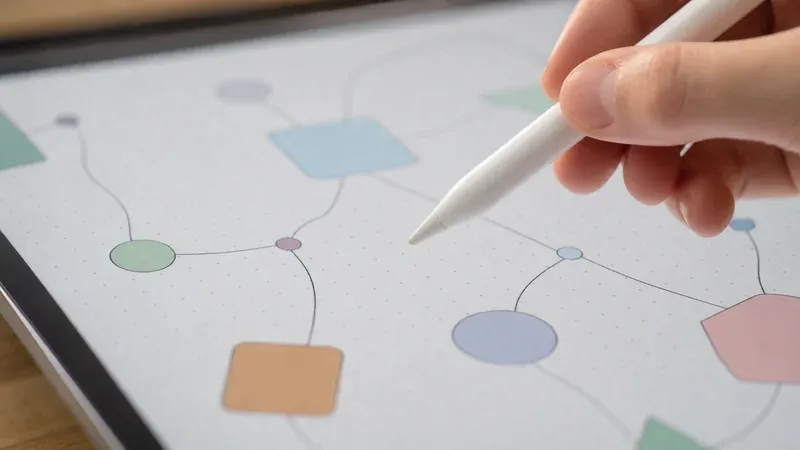
A connector becomes far more useful when it is bound to the shapes it links. Instead of an arrow that merely happens to sit between two boxes, the arrow remembers that its start belongs to box A and its end to box B. Now when you drag box B across the canvas, the arrow follows and stays attached, re-drawing itself to keep the connection. Text can bind the same way — a label attached to a box travels with it. This binding is what lets you rearrange a flowchart freely: move the steps and the logic stays wired together, because the relationships are stored as data, not just drawn as ink that happens to touch.
Rendering: Redrawing the Visible Slice Efficiently
Put the pieces together and a picture of the render loop emerges. On every frame that needs updating, the engine looks at the current camera to work out which region of world space is on screen, gathers the objects that fall inside that region, converts each one's world coordinates to screen coordinates using the camera transform, and paints them — commonly onto an HTML canvas element. Objects far outside the view are skipped entirely, an optimization called culling, which is why a board with thousands of shapes stays smooth as long as only a few are visible at once. Interactive tools layer small refinements on top: only redrawing when something actually changes, and rendering the stroke you are actively drawing on a lightweight overlay so the rest of the scene need not be repainted on every pointer move.
None of this requires a server. The camera math, the object list, the smoothing and the shape recognition are all plain computation the browser can do locally, in real time, on the device in front of you.
Why 100% Client-Side Matters
Because a whiteboard is just coordinates, objects and transforms, every bit of it can run inside your browser tab — and that has a direct consequence for your privacy. When the tool is fully client-side, your drawing is never uploaded. The shapes exist only in your browser's memory and, if you save, in a file on your own disk. There is no server that receives your sketch, no account that ties it to your identity, and no copy sitting in someone else's database waiting to leak.
That distinction is easy to overlook until the board holds something sensitive: an early product plan, a customer's screenshot, an architecture diagram of an internal system, a rough org chart during a reorganization. With a client-side tool those never leave your machine, so there is simply nothing to intercept in transit or breach at rest. It also means the board keeps working with no network at all — the computation is local, so an unstable connection or an offline flight does not stop you. Privacy here is not a policy promise bolted on afterward; it is a structural property of building the whole thing to run on your device. To see how these ideas support real work, read our guide to using an online whiteboard for brainstorming and annotation.
How the Pieces Fit Together
Step back and the whole system is remarkably coherent. An infinite canvas is a coordinate space, not a stored image. World coordinates give every shape a permanent home, while screen coordinates describe your display; the camera translates between them, so panning and zooming just move a lightweight view over a stationary world. Storing drawings as vector objects keeps them crisp at any magnification and editable forever, and makes saving a matter of writing out a small list of descriptions. Stroke smoothing tames noisy input into flowing lines, shape recognition promotes rough sketches into clean geometry, and snapping plus bound connectors add precision and keep diagrams wired together as you rearrange them. Because all of it is ordinary math the browser can run, the entire tool can stay on your device, private by construction.
Understanding the machinery is not just trivia — it changes how you use the tool. Knowing shapes are objects, you draw rough and clean up later. Knowing the camera is cheap, you zoom out fearlessly to see the whole picture. Knowing everything is local, you sketch sensitive ideas without a second thought. If you want to compare this approach to other thinking media, see whiteboard vs paper vs slides, or dig into structure with our guide to visual thinking, diagrams and flowcharts.
See It for Yourself
The fastest way to appreciate how an infinite canvas works is to poke at one. Open the online whiteboard, draw a wobbly rectangle and watch it snap clean, then zoom in until you expect pixels — and find crisp edges instead. Pan a long way in one direction and notice the view stays instant. Drag a box and see its bound arrow follow. Everything you just read is happening in those moments, entirely inside your browser, with nothing sent anywhere.