Introduction
A flatbed scanner or a single-pass sheet feeder can only capture one side of a page per trip through the glass or the tray. Scan a stack of double-sided documents on hardware like that and you don't get one file — you get two: a "fronts" PDF, with every odd page in reading order, and a "backs" PDF, which came out backwards because you flipped the physical stack over as a whole before running it through a second time. Neither file is usable on its own, and gluing them one after the other just gives you all the fronts followed by all the backs, still not interleaved into a real document.
This article walks through the exact sequence of clicks that turns those two files into one correctly ordered PDF using the PDF Organizer, plus the handful of ways the process goes sideways in practice and how to catch them before you download. If you want the underlying explanation of why the second file comes out reversed in the first place, our companion piece, Duplex Scanning and the Reverse-Order Problem, covers the physical mechanics in depth; this article assumes that background and focuses purely on execution.
Why You End Up With Two Files In the First Place
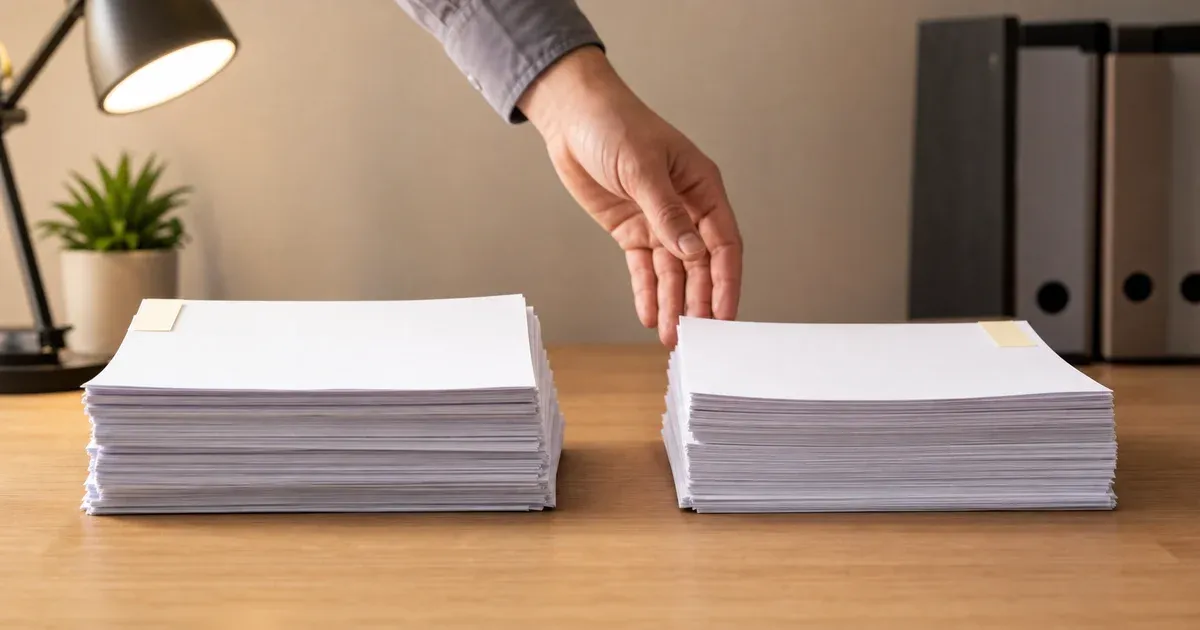
Picture a 10-page double-sided document fed through a simplex scanner. On the first pass, you load the stack face-up and scan every front: pages 1, 3, 5, 7, 9, in that order, saved as one PDF. To capture the backs, you can't just run the same stack through again — the backs are face-down. So you lift the entire stack, flip it over as one unit, and feed it through a second time. That single physical flip reverses the whole stack's order relative to the page numbers you want: the sheet that held page 10 (the back of page 9) is now on top, followed by page 8, then page 6, and so on down to page 2 on the bottom. The scanner has no idea any of that happened — it just captures whatever comes through in whatever order it arrives, so the second file is a faithful scan of an intentionally reversed stack. The result is two internally consistent but mutually backwards files, and no scanner setting fixes that; it has to be corrected after the fact.
The Exact Flow, Step by Step
Step 1: Confirm You Have Two Separate Files
Before opening the tool, make sure your scanning software actually saved two distinct PDFs rather than one combined file with the pages already in the wrong order — check the file list or the scanner's output folder. Some scan utilities append a suffix like _1 and _2, others just increment a filename counter; either way, you want one file that is every front page in order and a second file that is every back page in reverse order.
Step 2: Add Both Files to PDF Organizer
Drag both PDFs onto the drop zone, or browse and select them together. Each file appears as its own row in the tool, with its own independent range, rotation, and reverse-order controls — nothing you set on one file touches the other.
Step 3: Reverse the Backs Document
Find the row for the backs file and toggle its reverse-order switch on. Leave the fronts file's reverse toggle off — it is already in the correct order and flipping it would undo the pairing you're trying to create. This single toggle is the entire fix for the flipped-stack problem: it walks that document's page list end to end, so the sheet that was captured last (originally the back of your first page) becomes the first page contributed by that document, and the sheet captured first becomes its last.
Step 4: Switch Mode to Interleave
By default, adding two documents concatenates them — all of the fronts document, then all of the backs document, one after another. That's not what you want here. Switch the combination mode to Interleave, which walks both documents side by side instead: page 1 of the fronts document, then page 1 of the (now-reversed) backs document, then page 2 of the fronts document, then page 2 of the backs document, and so on. Because the backs document was reversed in the previous step, its "page 1" after reversal is the scan that was physically the back of your first sheet — exactly the page that belongs right after front page 1 in the finished document.
Step 5: Verify in the Live Preview
The thumbnail grid updates immediately and shows every output page labelled with its source file and original page number, for example "2 · backs.pdf p.5". Scroll through the first four or five pairs and confirm a front is genuinely followed by its matching back — readable text on one, and if you know the document, sensible content on the reverse. This preview costs nothing to check and catches a mis-toggled reverse switch before it ends up in a downloaded file, rather than after.
Step 6: Download
Once the pairing looks right in the preview, click Download PDF. The tool assembles the file locally in your browser tab — nothing you added is ever sent to a server — and hands you a single PDF with fronts and backs correctly interleaved.
Why Reverse Has to Happen Before Interleave
It matters that you toggle reverse order on the backs document rather than trying to fix the order some other way, because of how the tool actually builds the output. Each document's own settings — its page range, then its reverse toggle, then any rotation — are resolved into a private, ordered page list before any combination with other documents happens. Interleave (or Concatenate) only runs after that per-document list is finalized. So reversing the backs document doesn't reorder the combined output after the fact — it corrects that document's own internal order first, and only then does interleaving zip the two already-correct lists together. Try to skip the reverse step and interleave the raw files directly, and you'll get front 1 paired with back 10, front 2 paired with back 9, and so on — every pair backwards.
What to Do When It Doesn't Line Up
A handful of predictable issues show up in the live preview before you ever download a broken file:
- Odd page counts. If your original document had an odd number of physical pages, the very last sheet only had a front — there's no matching back to pair it with. The fronts file will have one more page than the backs file, and Interleave's round-robin behavior handles this correctly on its own: once the backs document runs out, the fronts document's remaining page (the last one) gets appended at the end instead of the tool trying to force a pairing that doesn't exist.
- A blank page in the backs file. If the last sheet in your stack genuinely was blank on the back, your scanner may have captured a blank page for it, which is correct and expected — just delete that specific thumbnail from the grid after interleaving rather than fighting with the scan settings.
- Backs coming out upside down. Some sheet feeders flip pages 180 degrees relative to the fronts pass depending on how the stack was loaded for the second run. If every back page in the preview reads upside down, rotate the whole backs document 180 degrees using its document-level rotation control before interleaving — our sibling article, Rotate Specific Pages in a PDF, covers document-level versus per-page rotation in more depth if only some pages need correcting rather than the whole file.
- Skewed or shifted pairing. If a page looks paired with the wrong back partway through — say everything is fine for the first six pairs and then shifts by one — a sheet was likely skipped or double-fed during one of the two scanning passes. Check your two source files' page counts against each other and against the original stack; a one-page mismatch confirms a feed error rather than a tool problem, and the fix is rescanning the affected pages, not adjusting settings here.
Doing This for a Batch of Documents in One Sitting
If you're clearing a stack of several double-sided documents in one scanning session, it's worth naming your files predictably before you ever open the tool — something like invoice-042-fronts.pdf and invoice-042-backs.pdf — so you don't end up pairing the wrong fronts file with the wrong backs file when several pairs are sitting in the same downloads folder. The Organizer itself handles one combined output per session: process one fronts-and-backs pair, download the result, then clear the grid (or reload the page) and start the next pair fresh. There's no persistent project state to manage between pairs, which keeps the process simple but also means double-checking the live preview matters more when you're moving quickly through a batch — a mismatched pair is easy to catch in the thumbnails and easy to miss if you download without looking.
If, after interleaving, you find a page or two still out of place — a sheet fed slightly early, or one you want to move manually rather than rescan — the same live grid supports dragging an individual thumbnail to a new position, or using the keyboard with a thumbnail focused. Our sibling article, Reorder PDF Pages Without Acrobat, covers those manual controls in detail; it's the natural next step once the automatic fronts-and-backs pairing gets you 95% of the way there and one page needs a manual nudge.
When You'd Reverse Without Interleaving
Reversing a single document isn't only useful as a step toward interleaving two files together — sometimes a scanner or a fax gateway hands you one file whose pages simply run last-to-first with nothing to pair against. Our sibling article, Reverse PDF Page Order Online, covers that simpler case: one document, one reverse toggle, no second file and no interleaving involved.
Conclusion
Combining scanned fronts and backs into one correctly ordered PDF comes down to four settings applied in the right order: load both files, reverse the backs document only, switch the combination mode to Interleave, and check the live preview before downloading. Nothing about the process re-scans, re-renders, or otherwise touches the actual page content — it is purely a matter of reordering references to pages you already captured, which is why it costs nothing in quality and takes under a minute once you know the sequence. Once the flow is familiar, a stack of double-sided paper that came off a single-sided scanner in two backwards-facing pieces turns into a single clean document in exactly six clicks.