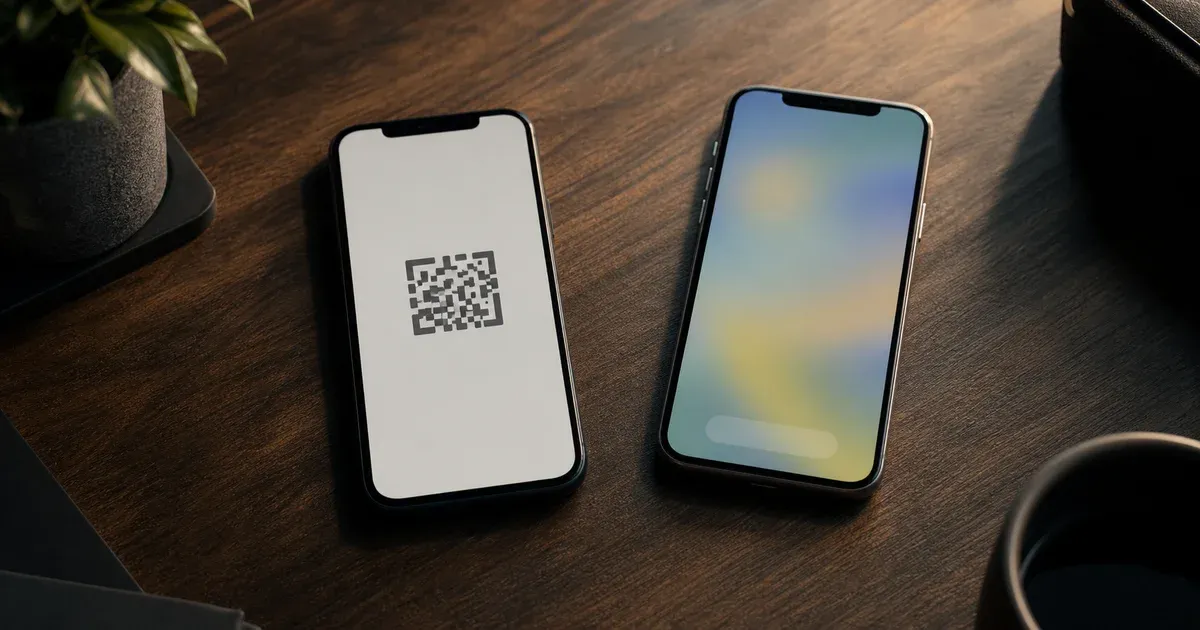
Switching authenticator apps sounds like it should be a two-minute job: open Google Authenticator, tap "Export accounts," scan the QR code with your new app, done. In practice, people try exactly this and are surprised when the new app either rejects the code entirely or imports nothing usable. The reason is not a bug — it is a format decision baked into how Google Authenticator exports data. This guide explains what that export QR actually contains, why most other apps cannot read it, and the reliable, universal route to move your two-factor accounts to any app you choose without losing access.
Why You Cannot Just Scan the Export QR Into Another App
When you first add an account to any authenticator app, the service shows you a QR code that encodes a standard otpauth://totp/... URI. That URI is an open, documented format: it carries the account label, the issuer name, and — most importantly — the shared secret in Base32, plus optional parameters like the algorithm, digit count, and period. Any compliant app can read that single URI and start generating codes. This standard is described in detail in our pillar guide on the anatomy of a 2FA QR code.
Google Authenticator's "Export accounts" (also labelled "Transfer accounts") feature produces something different. Instead of one otpauth:// URI per account, it generates one or more QR codes containing a single otpauth-migration://offline?data=... URI. The data parameter is a Base64-encoded binary payload — a Protocol Buffers ("protobuf") structure that packs multiple accounts at once, each with its secret, name, issuer, and algorithm fields. It is a batch container, not a per-account credential URI.
This otpauth-migration:// format is effectively proprietary to Google Authenticator. It was never published as an interoperable standard the way otpauth:// was. As a result, most competing apps do not attempt to parse it, and a plain QR-scanning app will simply see a URI scheme it does not understand. Some open-source tools and a handful of apps have reverse-engineered the protobuf layout and can decode it, but you cannot rely on any given target app supporting it. If your new app does not, the export QR is a dead end.
The Two Formats, Side by Side
It helps to hold the distinction clearly:
- Standard enrolment URI —
otpauth://totp/Example:[email protected]?secret=JBSWY3DPEHPK3PXP&issuer=Example. One account, open format, readable by every compliant app. This is what a service shows you when you set up 2FA. - Google migration blob —
otpauth-migration://offline?data=Ci0KCk.... Many accounts, Google-specific protobuf, not part of the interoperable standard. This is what "Export accounts" produces.
Because the migration blob is not the portable form, treating it as your migration path ties you to whichever apps happen to support Google's private format. The portable form is the individual otpauth:// secret — and the reliable strategy is built around obtaining that fresh for each account.
The Reliable, Universal Route: Re-Enrol Each Service
The method that works with every authenticator app, on every platform, without depending on Google's export format, is to re-enrol each service one at a time. It is more manual than a single scan, but it is the only approach that is guaranteed to work and, done carefully, it never leaves you locked out. The core idea: for each account, generate a brand-new secret at the service, add that new secret to your new app, and confirm it works before moving on.
For each account protected by Google Authenticator:
- Log in to the service and open its security or two-factor authentication settings. This is where the account's 2FA is managed — not inside the authenticator app.
- Disable or reset the existing authenticator, then start the "add authenticator app" flow again. Many services phrase this as "set up authenticator app" or "change authenticator." Resetting causes the service to issue a new shared secret; the old code in Google Authenticator will stop being valid for that account once you complete the change.
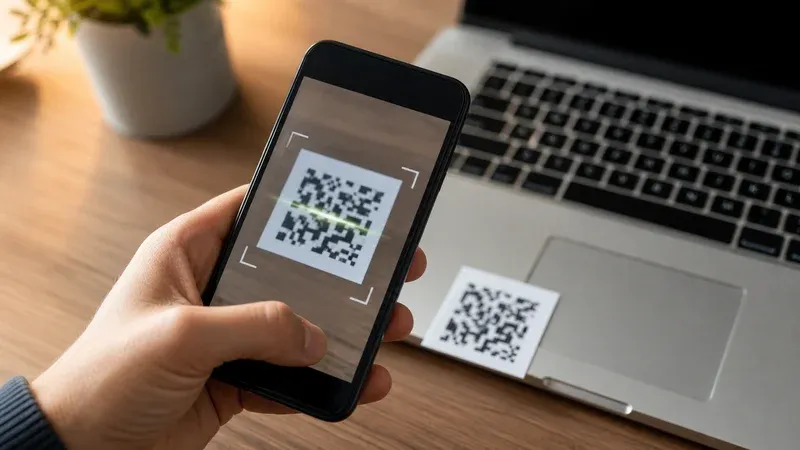
- Scan the new QR code with your new app. Because the service is showing you a standard
otpauth://QR, any authenticator app can read it — Aegis, 2FAS, Ente Auth, Microsoft Authenticator, 1Password, Bitwarden, and Google Authenticator itself all accept it. - Enter the code from the new app to confirm. The service will ask you to type a current code to prove the new secret was captured correctly. Only after this confirmation is the switch complete for that account.
- Save the new recovery/backup codes the service offers. These are your fallback if you ever lose the new app, and they are regenerated when you reset 2FA.
Work through your accounts in priority order — email first (because it usually controls password resets for everything else), then financial accounts, then the rest. There is no rush to delete the old app; the two can coexist during the transition.
Verify Before You Delete the Old App
The single rule that prevents lock-outs: keep Google Authenticator installed and untouched until every new code has verified against its service. Do not uninstall it, do not wipe the old phone, and do not remove an account from it until you have successfully signed in (or completed the confirmation step) using the code from your new app. If a re-enrolment goes wrong — a mistyped code, a half-finished flow, a service that silently kept the old secret — the old app is your safety net.
A practical way to confirm each account is genuinely migrated: after re-enrolling, fully sign out of the service and sign back in, entering the code from the new app. If that round trip works, the account is done and you can remove it from the old app. Only when the last account has been verified should you retire Google Authenticator.
The Shortcut: If You Saved the Original Secret
Re-enrolment is necessary only when you no longer have the account's original secret. If, at the time you first set up 2FA, you saved the underlying otpauth:// URI or the Base32 secret string (many setup screens offer a "can't scan the code?" link that reveals the secret in text), migration is trivial and requires no changes at the service at all. Because that secret is the portable standard form, you can add it to any authenticator app directly and it will generate the same codes as before — no disabling, no resetting, no new recovery codes.
You can confirm a saved secret produces correct codes before you rely on it. Paste the Base32 secret into our TOTP generator, and it will compute the current six-digit code entirely in your browser. If that code matches what the service currently expects (or what Google Authenticator shows), you know the secret is valid and can be trusted in your new app. This is also the fastest way to sanity-check a secret you exported or wrote down: a matching code proves the secret, algorithm, and period are all correct.
The lesson for future setups is clear: whenever a service lets you view the text secret during 2FA enrolment, save it in your password manager alongside the account. A stored secret turns any future app migration from a service-by-service re-enrolment marathon into a simple paste. For a broader look at what happens when you have no saved secret and lose access entirely, see our guide on recovery options after losing a phone with 2FA.
Handling Secrets and Screenshots Safely
A TOTP secret is a bearer credential: anyone who holds it can generate valid codes for your account indefinitely, exactly as your app does. That makes the secret — and anything that contains it — as sensitive as the password itself. Treat migration data accordingly.
- Be careful with screenshots. Screenshotting a QR code or a text secret drops a permanent copy into your photo library, which is very often synced to a cloud backup and possibly shared across devices. A secret sitting in your camera roll is a secret you no longer fully control. If you must screenshot temporarily, delete it — and empty the "recently deleted" album — as soon as the migration is done.
- Do not paste secrets into arbitrary websites. A secret pasted into an untrusted online generator can be logged server-side. Only use tools that compute codes locally in the browser and transmit nothing; our TOTP generator runs entirely client-side for exactly this reason.
- Store secrets in a password manager, not a notes app. If you keep saved secrets, put them in an encrypted vault (Bitwarden, 1Password, KeePassXC), not a plaintext note or a chat message to yourself.
- Clean up Google's export data. If you did generate an
otpauth-migration://QR while experimenting, do not leave a screenshot of it lying around — it contains every exported secret at once, which makes it an especially high-value artifact.
Choosing Where to Migrate
Since you are re-enrolling anyway, it is worth picking a destination app that avoids the lock-in that made this migration awkward in the first place. Practically, the qualities that matter are: exportable, standards-based backups (so your next migration is painless), encrypted backups you control, and multi-device or cross-platform support so a single lost phone is not a crisis. Open-source apps such as Aegis (Android), 2FAS, and Ente Auth, as well as the authenticator features built into password managers like Bitwarden and 1Password, all store standard TOTP secrets and let you export or sync them. The specific choice is yours; the goal is simply to land somewhere that treats your secrets as portable data rather than trapping them behind a private format.
Common Migration Pitfalls
A few recurring mistakes turn a smooth migration into a lock-out:
- Deleting the old app first. Uninstalling Google Authenticator or factory-resetting the old phone before verifying the new codes removes your only fallback. Always verify first.
- Assuming the export QR "just works." As covered above, the
otpauth-migration://blob is not universally readable. Do not build your plan around scanning it into an app you have not confirmed supports it. - Skipping the confirmation step. Some services show the new QR but only finalise the change after you enter a code. If you close the page early, the account may still be tied to the old secret — or, worse, half-changed. Always complete the confirmation.
- Losing the new recovery codes. Resetting 2FA regenerates recovery codes and invalidates the old ones. Save the new set immediately.
- Migrating everything at once under time pressure. Do it in small batches, verifying each account, so a single mistake affects one login rather than all of them.
Putting It Together
Migrating away from Google Authenticator is entirely doable; it just is not the single-scan operation the "Export accounts" button implies. That export produces a private otpauth-migration:// batch blob that most apps cannot read, so the dependable path is to re-enrol each service, capture a fresh standard otpauth:// secret in your new app, and verify each one before retiring the old app. If you saved your secrets when you first set up 2FA, you can skip re-enrolment entirely and simply add them to any app — and you can confirm each saved secret produces the right code using our TOTP generator before you depend on it. Whichever route applies, keep the old app until every account is confirmed, and treat every secret and screenshot as the sensitive credential it is.