
You have sketched a diagram, mapped out an idea, or annotated a screenshot on an online whiteboard — and now you need to get it out. The export button is where a lot of good work quietly goes wrong: a blurry image pasted into a document, a diagram that pixelates the moment someone zooms in, or a board you can no longer edit because you only saved a picture of it. This guide explains the four formats a good whiteboard offers — PNG, SVG, PDF and JSON — what each one actually is, and how to pick the right one so your export looks as sharp as the board did on screen.
The One Distinction That Explains Everything: Raster vs Vector
Almost every export decision comes down to a single idea: the difference between raster and vector images. Understand this and the rest follows naturally.
A raster image is a grid of colored pixels, like a photograph. It has a fixed number of pixels, decided at the moment you export. That is fine at the size it was made for, but if you enlarge it beyond that, the browser has to invent pixels it does not have, and the result looks soft or blocky. PNG is a raster format.
A vector image is not pixels at all — it is a set of instructions: "draw a rectangle here, a line from this point to that one, this text in this font." Because the shapes are described mathematically rather than baked into pixels, a vector image can be scaled to any size, from a business card to a billboard, and stay perfectly crisp. SVG is a vector format.
This is the crux of the whole guide: raster is a snapshot of how the board looks, and vector is a recipe for redrawing it. Neither is better in the abstract — they suit different jobs, which the rest of this article maps out.
PNG: The Everyday Choice for Sharing
PNG is the format you will reach for most often, and for good reason. It is a raster image that pastes cleanly into virtually anything — a chat message, an email, a slide, a document, a wiki page, a ticket. When you just want to show someone what is on your board without any fuss, PNG is the answer.
PNG has two properties that make it especially well suited to whiteboard work. First, it is lossless: unlike JPEG, it does not blur or smear crisp edges to save space, so the clean lines of your shapes and text stay clean. Second, it supports transparency, so you can export a diagram with a see-through background that sits neatly on top of any color it lands on, rather than dragging a white box around with it.
Choosing a Size: Pixels or Print
Because a PNG has a fixed pixel count, the size you export at matters. A good whiteboard lets you choose that size in one of two ways, and knowing which to use saves you from a fuzzy result.
- By exact pixels — pick a width and height in pixels when the image is destined for a screen. If it will fill a large monitor or a projector, export bigger than you think you need; downscaling a large image looks great, but upscaling a small one never does.
- By print quality — choose a paper size (such as A4 or Letter) and a resolution in DPI (dots per inch) when the board will be printed. Print looks sharp at around 300 DPI, so the tool multiplies your paper dimensions by that density to work out how many pixels the file needs. This is why a "print size" export produces a much larger pixel count than a screen export — paper packs far more dots into the same visible area than a monitor does.
There is an honest trade-off here. Larger pixel dimensions mean a sharper image but a bigger file and more memory used while generating it. Very large exports can be heavy, especially on a phone, so pick a size that matches where the image will actually be seen rather than always maxing it out. For a quick paste into chat, a modest screen size is plenty; save the print-resolution export for boards you will actually put on paper.
SVG: Infinitely Scalable and Still Editable
When your board is a diagram — boxes, arrows, text, clean geometry — SVG is often the smarter export. Because it stores your shapes as true vectors rather than pixels, an SVG stays razor-sharp at any size. Drop it into a document and zoom to 400%, project it onto a wall, or place it in a printed report at full page width, and every edge remains crisp. There is no resolution to choose because there is no fixed resolution: the image is redrawn perfectly at whatever size it is displayed.
SVG has a second advantage that is easy to overlook: it stays editable. An SVG file can be reopened in a vector editing program, where each shape and text label is still a separate, selectable object. That makes SVG the right choice when someone downstream may need to recolor a box, tweak a label, or drop your diagram into a larger design. A PNG, by contrast, arrives as a flat sheet of pixels with nothing to grab hold of.
SVG is not the answer for everything. It describes shapes efficiently but is less suited to photographic content, so a board built mostly around an imported photo will not shrink the way a clean diagram does. And because SVG is a structured format, some non-technical apps handle it less gracefully than a plain PNG. The rule of thumb is simple: geometric, line-based work loves SVG; photo-heavy boards lean toward PNG.
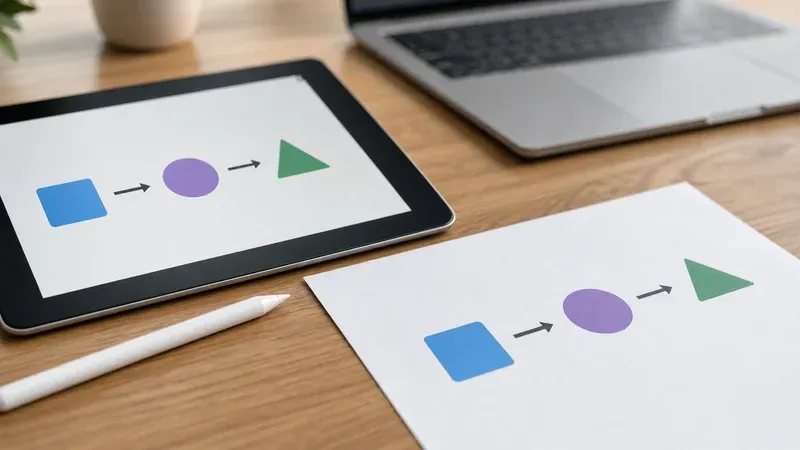
PDF: For Printing and Documents
PDF is the format for when a board needs to become a document — something to print, hand out, or attach to an email with confidence that it will look identical on every device. A PDF wraps your board into a fixed-layout page that any computer, phone or printer can open without special software, which is exactly what you want for a handout, a one-page reference, or a sign-off attached to a report.
Think of PDF as the delivery format rather than the working format. You would not keep editing a board as a PDF, but it is the cleanest way to send a finished board to someone who just needs to view or print it. If your reader might open the file on an unknown device and you want the page — margins, size and all — to arrive exactly as you laid it out, PDF is the safe choice.
JSON: Save the Board Itself, Not a Picture of It
The other three formats all export what the board looks like. JSON exports what the board is. It saves the scene — every shape, stroke, image, color and position — as structured data you can load straight back into the whiteboard later, landing exactly where you left off.
This is the most important format to understand, because it is the one people forget until they need it. Imagine you brainstorm for an hour, export a PNG, close the tab, and the next day realize you want to add three more boxes. With only a PNG, you are stuck: a raster image cannot be turned back into editable shapes. But if you also saved a JSON scene, you reopen it and the board is live again — every object selectable, movable and editable, as though you never left.
This round-trip — export to JSON, reload from JSON — is what makes a whiteboard a place you can return to rather than a one-shot sketchpad. The habit worth building is simple: when a board matters, export two files. A PNG (or PDF) to share the result, and a JSON so the work is never a dead end. On top of that, a good board autosaves locally and restores your last session on your next visit, so an accidentally closed tab is rarely a disaster — but an explicit JSON export is what lets you archive a specific board, move it to another device, or keep several versions side by side.
Everything Is Generated in Your Browser — Nothing Is Uploaded
A detail that matters, especially for sensitive work, is where the export actually happens. On a privacy-first whiteboard, all of it runs locally in your browser. When you click export, your device reads the shapes on the canvas and encodes them into a PNG, SVG, PDF or JSON file right there — no drawing is sent to a server, and no account is involved. The file simply downloads to your device.
The practical upshot is that your board never leaves your control. Early product plans, a customer's screenshot, an internal architecture sketch — none of it is transmitted anywhere just because you exported it. This is a genuine difference from cloud whiteboards that render exports on their own servers, and it is worth knowing when the content is confidential. It is the same principle behind starting a free online whiteboard with no sign-up: the work stays on your device from the first stroke to the final export.
A Quick Decision Guide
When you reach the export button, a few questions settle the choice fast:
- Pasting it somewhere right now? Export a PNG at a screen size.
- Printing or projecting it? Export a PNG at print quality (choose the paper size and 300 DPI), or a PDF for a fixed page.
- Will it be enlarged, embedded, or re-edited by a designer? Export an SVG so it scales and stays editable.
- Might you come back to keep working on it? Export a JSON scene — and pair it with a PNG for sharing.
Most boards deserve two exports: one to show the work and one to preserve it. Get that habit right and you will never again find yourself staring at a flat image, wishing you could move just one box. If you are still building the board itself, our guides on making a flowchart online step by step and using an online whiteboard for brainstorming and annotation cover the drawing side; this one is about landing it cleanly at the end.
Export With Confidence
The formats are not interchangeable, but the logic is simple once you see it: PNG is a picture to share, SVG is a scalable and editable version for anything that will be resized or reworked, PDF is a document to print or send, and JSON is the living board you can reopen and keep building. Match the format to the destination, remember to keep a JSON when the board matters, and know that every file is generated privately in your browser. Open the online whiteboard, draw something worth keeping, and export it the right way.