Introduction
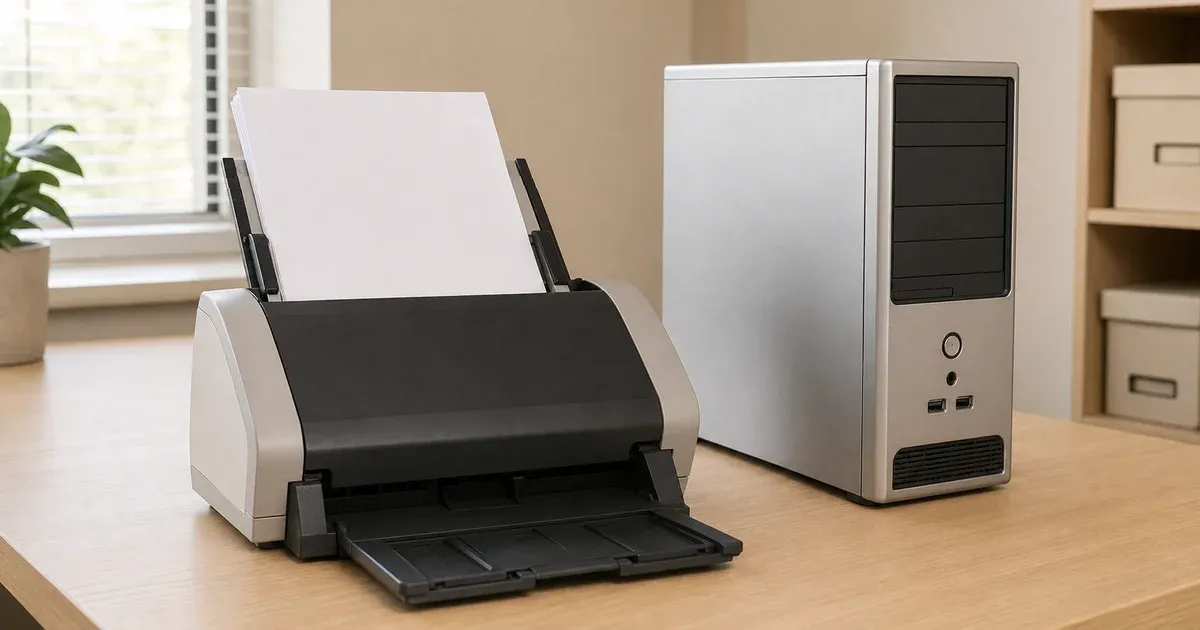
Most sheet-fed scanners bundled with home printers and small-office multifunction devices have an automatic document feeder (ADF) that reads only one side of a page per pass — no matter how good the rest of the machine is. On Windows, that limitation shows up in exactly the same way whether the paper is going through a $60 all-in-one or a $600 office workhorse: you get a "fronts" pass and a "backs" pass, saved as two separate files, and combining them naively produces a document that reads in a nonsensical order. This guide covers the two built-in Windows tools capable of driving that scanner — the modern Windows Scan app and the legacy Windows Fax and Scan — and the exact steps to turn the resulting pair of files into one properly ordered PDF.
If you want the mechanics of why the backs pass comes out reversed in the first place, our companion article, Duplex Scanning and the Reverse-Order Problem, covers that in depth. This article assumes that background and focuses on the Windows-specific scanning procedure and the fix. Working from a Mac or a Linux machine instead? See our companion guides for scanning double-sided documents on macOS and scanning double-sided documents on Linux.
Why a Simplex Feeder Produces Two Mismatched Files
An ADF with a single sensor can only capture whichever side of the sheet is facing it as the sheet passes through. To digitize a double-sided original, you run the stack through once for the fronts, physically flip the entire stack over as one block, reload it, and run it through a second time for the backs. That flip reverses the stack's top-to-bottom order, so the fronts come out in reading order while the backs come out last-page-first. It's a mechanical consequence of the flip, not a scanner fault, and the same thing happens regardless of which Windows app drives the scan — the app only controls how each individual pass is captured and saved.
Before You Scan: Confirm Windows Sees Your Feeder
Both Windows scanning apps rely on a driver Windows has already registered, so it's worth confirming the scanner shows up correctly before loading a stack of paper. Go to Settings > Bluetooth & devices > Printers & scanners, and check that your all-in-one or dedicated scanner is listed and shows as ready rather than offline. If it's missing, use "Add device" and let Windows search over USB or your network — most consumer and small-office scanners install automatically through Windows' built-in driver set, without needing the manufacturer's full software suite. If your scanner has both an ADF and a flatbed glass, Windows sometimes lists them as if they were two separate connected devices, or lists a single device with the Source drop-down handling the distinction inside the scanning app itself; either layout is normal, and either app described below will let you pick the feeder specifically once you're scanning.
Scanning on Windows: Two Apps, One Job — Neither Exports PDF Directly
Windows ships two different scanning utilities, and which one you have available depends on your version and setup. The Windows Scan app is a free Microsoft Store download that runs on both Windows 10 and Windows 11 and is the tool Microsoft currently recommends for most users. Windows Fax and Scan is the older, WIA-based desktop program; it comes preinstalled on Windows 10, while on Windows 11 it has been demoted to an optional component you add manually (Settings > System > Optional Features > Add an optional feature, then search for "Windows Fax and Scan"). It is not available at all on Windows 11 ARM devices.
It's worth being upfront about a detail a lot of scanning tutorials get wrong: as of the current versions of both apps, per Microsoft's own support documentation, neither one lists PDF as a save format. The Windows Scan app's File type menu offers only JPEG, PNG, TIFF, and Bitmap; Windows Fax and Scan's is limited to BMP, JPG, PNG, and TIF. Both apps can still get you to a PDF — it just takes one extra, well-supported step using Windows' built-in Microsoft Print to PDF virtual printer, covered after the two methods below.
Method 1: Scanning With the Windows Scan App
- Load the stack for the fronts pass. Place the double-sided stack in the ADF face-up (or as your scanner's feeder icon indicates), so the feeder pulls sheets from the top in original page order.
- Open the Scan app and pick your scanner. Search for "Windows Scan" from the Start menu and select your device from the Scanner drop-down if you have more than one installed.
- Set the Source to Feeder. The Source drop-down offers Flatbed, Feeder, and Auto-configured — choose Feeder explicitly rather than relying on Auto-configured, since that default should match wherever you actually placed the stack. Selecting Feeder adds a page-size choice (A4, Legal, or Letter) and a "scan both sides" toggle to the window; on a genuinely simplex ADF that toggle typically won't appear at all, and if it does, leave it off — this workflow scans one side per pass on purpose.
- Set File type to TIFF. Of the four available formats, TIFF is the one worth choosing here because — unlike JPEG, PNG, or Bitmap — it can hold multiple pages in a single file, which keeps the whole fronts pass as one document instead of a folder of loose images.
- Choose Show more > Save file to, then scan. Pick a destination folder, then select Scan at the bottom of the window and let the whole stack feed through. Windows Scan saves the result — a single multi-page TIFF if your scanner driver reports feeder support correctly, or one image file per page if it doesn't — into that folder automatically.
- Flip the entire stack as one block and reload it. Don't flip sheets individually — lift the whole stack and turn it over like a single pad of paper, then place it back in the feeder.
- Repeat the scan for the backs pass. Same Source: Feeder, same File type: TIFF, into the same or a different folder so you can tell the two passes apart. This pass will come out in reverse page order; that's the expected, correctable result described above.
Method 2: Scanning With Windows Fax and Scan
If you're on a system without the Scan app, or you already have Windows Fax and Scan open out of habit, it handles the ADF with slightly more explicit feeder options.
- Load the stack and open Windows Fax and Scan. Search for it from the Start menu (installing it first via Optional Features on Windows 11 if it isn't already present).
- Start a new scan. Click New Scan on the toolbar. Pick your scanner if prompted.
- Choose "Feeder (Scan One Side)" and a Documents profile. In the New Scan dialog, set Profile to Documents, then set Source. Alongside Auto-configured and Flatbed, the Source list on a duplex-aware driver typically splits the feeder into two explicit entries — Feeder (Scan One Side) and Feeder (Scan Both Sides). Pick Feeder (Scan One Side) deliberately; on hardware that's genuinely simplex-only, you may just see a single plain "Feeder" entry instead, which is equivalent for this purpose.
- Scan the fronts pass. Click Scan and let the whole stack run through the feeder; note that the Preview button isn't available when Feeder is selected as the source, which is expected.
- Flip the entire stack as one block and reload it. Lift the whole stack and turn it over like a single pad of paper, then place it back in the feeder.
- Scan the backs pass. Same Feeder (Scan One Side) source, same Documents profile. Windows Fax and Scan saves both passes as BMP, JPG, PNG, or TIF — again, no PDF option here either, which the next section resolves for both apps at once.
Turning the Scanned Images Into Two PDFs
Since neither app exports PDF directly, the fastest built-in route is Windows' own virtual printer. In File Explorer, open the folder your fronts pass was saved to, select the image file (or files, if your driver saved one per page — select them in page order, holding Ctrl or Shift) and right-click; on Windows 11, hold Shift while right-clicking to reveal the Print command that isn't shown by default. Choose Print to open the Print Pictures dialog, set the Printer drop-down to Microsoft Print to PDF — a built-in virtual printer included with Windows that "prints" to a PDF file instead of paper — set Layout to Full page so each scanned page becomes one PDF page rather than being tiled onto a photo layout, and click Print. Windows will prompt for a save location and filename; save it as your fronts file, such as statement-fronts.pdf. Repeat the same selection-and-print steps for the backs pass to produce statement-backs.pdf.
From Two Windows Scan Files to One Ordered PDF
Once you have fronts.pdf and backs.pdf saved locally — regardless of which app produced them — the fix is identical and happens entirely in the browser. Open our PDF Organizer and drag both files onto the drop zone. Each file gets its own row with independent range, rotation, and reverse-order controls. Toggle reverse-order on for the backs file only — leave the fronts file untouched, since only the backs pass was affected by the physical flip. Then switch the combination mode from the default Concatenate to Interleave, which alternates a page from the fronts document with a page from the (now-reversed) backs document, reconstructing the original front-back-front-back reading order. Scroll the live thumbnail grid to confirm the pairing looks right before you click Download — the tool never uploads either file anywhere; the whole reorder happens locally in the tab. Our companion walkthrough, How to Combine Scanned Front and Back Pages Into One PDF, covers this same six-click flow with a worked example if you want more detail on any individual step.
This combination step is purely structural — it changes which existing page appears where, never the pixels of the page itself, and every page copied through the organizer stays at the same quality it was scanned at.
Troubleshooting Your Windows Scan-and-Organize Workflow
A handful of predictable issues show up in the live preview before you ever commit to a download:
- Odd page counts. If the original stack had an odd number of sheets, the last one only has a front — there's no matching back to pair it with. Round-robin interleaving handles this on its own: once the shorter document (usually the backs file) runs out, the remaining page from the longer document is appended at the end instead of forcing a broken pairing or throwing an error.
- Blank backs. If the last sheet in the stack genuinely had nothing printed on its reverse, both Windows Scan and Windows Fax and Scan will faithfully capture a blank page for it, and Microsoft Print to PDF will faithfully turn that blank image into a blank PDF page. That's correct behavior, not a bug — just delete that specific thumbnail from the grid after interleaving.
- Upside-down backs on a rotating feeder. Some ADFs on multifunction printers rotate the sheet 180 degrees relative to the fronts pass, depending on how the second load was oriented. If every page in the backs file previews upside down, this is exactly where the organizer's per-document rotation control earns its keep: rotate the whole backs document 180 degrees before interleaving, rather than rescanning. Because rotation is applied as lossless PDF metadata rather than by re-rendering the page, it doesn't cost any image quality.
- Skewed or shifted pairing. If the first several pairs line up correctly and then shift by one partway through the preview, a sheet was likely double-fed or skipped mid-pass — a common ADF failure mode with worn feed rollers. Compare both files' page counts against your physical stack; a mismatch confirms a feed error, and the fix is rescanning the affected section, not adjusting the organizer's settings.
Which Windows Method Should You Use?
Since both apps stop at an image file and both need the same Print to PDF detour, the choice mostly comes down to which one is already on your PC and how explicit you want the feeder controls to be. The Windows Scan app is the simpler, more modern interface and is Microsoft's current default recommendation. Windows Fax and Scan is worth reaching for specifically because its Source list spells out Feeder (Scan One Side) as an explicit option rather than a single generic "Feeder" entry, which removes any doubt about whether you're triggering a one-pass or two-pass scan on hardware that supports both. Either way, the file you feed into the PDF Organizer at the end is identical: one PDF of fronts, one PDF of backs, reverse the backs, interleave, verify, download.
Scanning Several Double-Sided Documents in One Sitting
Clearing a stack of unrelated double-sided documents — a folder of old statements, say — works best if you name files predictably as you go, since both Windows apps save to whatever folder you last used without much prompting to reorganize afterward. Something like statement-jan-fronts.pdf and statement-jan-backs.pdf keeps a pair together in a crowded Downloads or Documents folder, which matters because neither Windows Scan nor Windows Fax and Scan tracks which two files belong together once they're saved — that pairing exists only in your file names and your memory. The PDF Organizer itself processes one fronts-and-backs pair per session: scan a pair, combine it, download the result, then reload the page (or clear the grid) before starting the next pair. There's no persistent project to manage between documents, which keeps each individual combine simple, but also means it's worth double-checking the live preview every time rather than assuming a workflow that worked for document one will silently work for document five — a mis-flipped stack or a driver that reset its Source back to Flatbed between scans is easy to catch in the thumbnails and easy to miss if you download without looking.
Conclusion
A single-sided ADF on Windows never forces a rescan of a double-sided stack — it just means the fix happens after scanning instead of during it, with one extra Print to PDF step Windows itself provides for free. Whether you use the modern Windows Scan app or the more explicit Feeder (Scan One Side) option in Windows Fax and Scan, the two resulting image passes convert to PDF the same way and feed into the same fix from there: reverse the backs document, interleave it with the fronts, check the live thumbnail preview, and download. No rescanning, no quality loss, and the same underlying process our PDF Organizer uses whether your scans came off a Windows desktop, a Mac, or a Linux workstation.