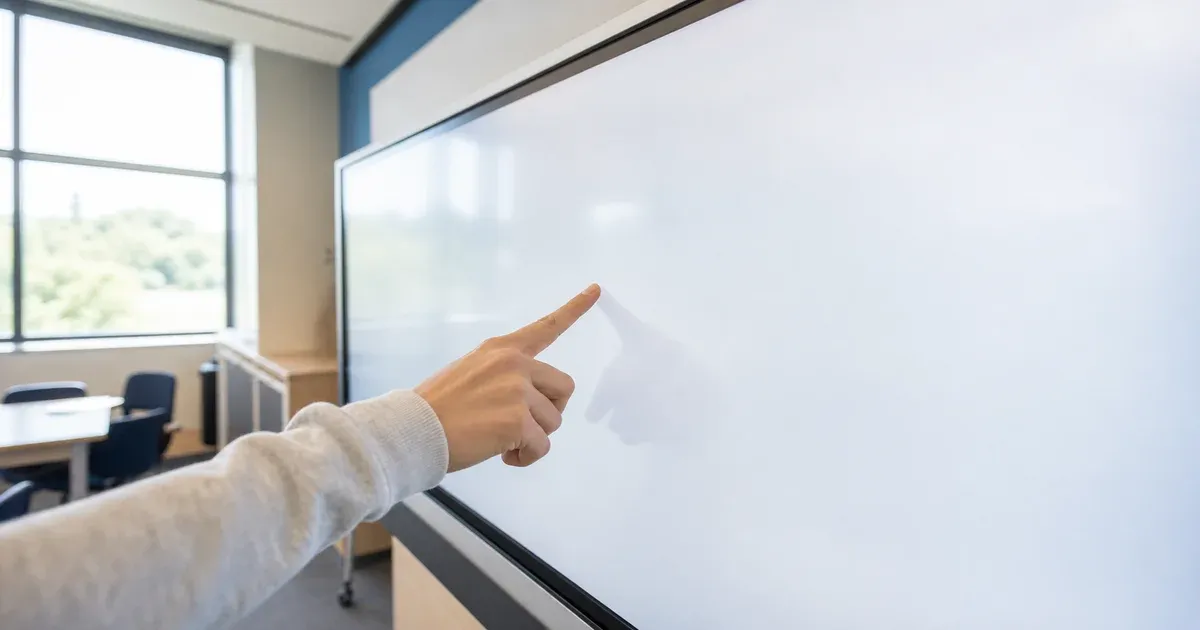
An interactive flat panel at the front of a classroom, a smartboard in a meeting room, a touchscreen kiosk on an exhibition floor — these screens are made to be touched, yet the software running on them is often clumsy about it: tiny buttons meant for a mouse, a stylus that skips, a page that scrolls when you meant to draw. A touchscreen whiteboard that treats touch and stylus as first-class input fixes that. It runs entirely in the browser, opens with no sign-up, and turns any touch display into a blank surface you draw on with a finger or a pen. This guide covers how the touch input actually works, why it suits interactive panels and kiosks, and how to launch it edge to edge so the screen behaves like a dedicated app.
Why Touch Input Is Usually the Weak Link
Plenty of drawing tools were designed for a mouse first and had touch bolted on later. You can feel it: targets sized for a precise cursor become fiddly under a fingertip, a two-finger gesture meant to pan instead zooms the whole page, and a stylus that hovers or tilts confuses a tool that only ever expected clicks. On a shared interactive display, where several people take turns at the board and nobody wants to fetch a mouse, that friction is the difference between a tool people reach for and one they avoid.
The root cause is usually the input model. Older code listens for mouse events, then separately tries to translate touch events into fake mouse clicks, and the two paths drift apart. Modern browsers solved this with a single unified model — Pointer Events, a W3C standard — that reports mouse, trackpad, touch and pen through one event stream, each carrying the device type, position and pressure. A whiteboard built on pointer events does not care whether a stroke came from a finger, a stylus or a mouse; it just draws the line. That is the quiet reason touch feels right on this board and awkward on tools that never adopted the standard.
Finger and Stylus, Treated the Same Way
Because the board reads pointer events directly, every input device works without a setting to flip. On an interactive panel you can sketch a quick diagram with a fingertip, then pick up the bundled stylus for finer work and keep going in the same stroke of thought. On a tablet, a palm resting on the glass does not derail the line the pen is drawing. On a laptop with no touchscreen at all, the same board runs on trackpad or mouse. One tool, every surface — which matters when a school buys one whiteboard for a mix of panels, tablets and laptops and needs it to behave the same on all of them.
The strokes themselves are smooth vector lines, not pixels painted onto a fixed layer. The pen and highlighter smooth the raw pointer path into a clean, rounded curve, so a slightly shaky hand on a wall-mounted screen still lays down a tidy line, and the eraser removes whole strokes as objects rather than scrubbing away a patch of image. Every stroke stays editable after you draw it: select it, move it, recolor it, or delete it cleanly. That is what lets a teacher redraw one line of a diagram at the board without wiping the whole thing and starting over.
Built for Interactive Flat Panels and Smartboards
The classroom and meeting-room case is where a touchscreen whiteboard earns its place. On an interactive flat panel, you want to walk up and write — no keyboard, no mouse, no menu-diving. This board's controls are large, touch-friendly targets, so tapping a tool with a fingertip is reliable rather than a game of precision. Work a problem line by line, drag a shape into place, drop a sticky note, and the whole interaction happens at the glass.
The shape and editing toolkit is what turns finger-drawing into something you can keep. Beyond freehand pen and highlighter, there are proper shapes — rectangle, rounded rectangle, ellipse, line, arrow, elbow connector, block arrow, triangle and diamond — plus text, sticky notes and imported images. You can select and move objects, resize a group (hold Shift to keep the aspect ratio), and rotate with a dedicated handle that snaps to 15° steps when you hold Shift. Align and distribute clean up a rough layout in one tap; z-order layering, group and ungroup, and lock keep a busy board manageable. Smart shape recognition means a rough box drawn by hand can become a crisp rectangle, which is a real gift when you are drawing with a finger on a vertical screen. Snapping, a dot grid and on-screen rulers keep everything lined up without fussy manual nudging. For a broader tour of these tools in everyday use, our guide to an online whiteboard for brainstorming and annotation walks through them one by one.
Running as a Full-Screen Kiosk
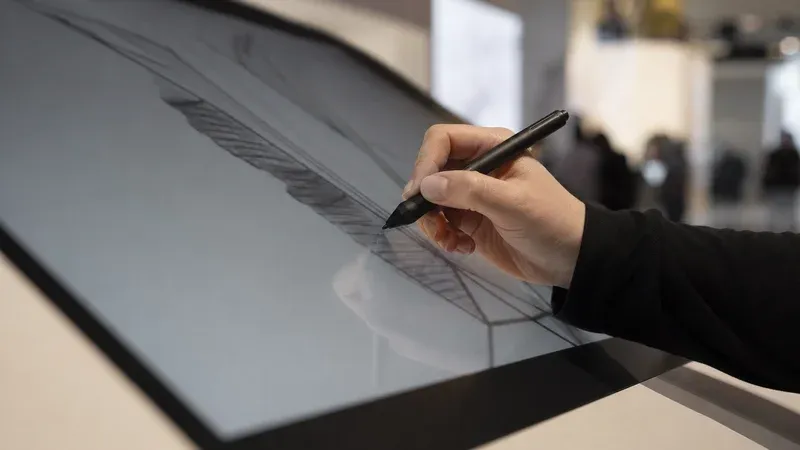
Kiosks and exhibitions are the other natural home for a touch whiteboard, and here full-screen is not a nicety but a requirement. A kiosk should feel like a purpose-built appliance, not a web page — visitors should never see a browser tab bar, an address field or an operating-system taskbar. The board expands edge to edge two ways. The native browser Fullscreen API promotes the canvas to fill the entire display, hiding all the browser chrome so a wall-mounted panel reads as a single drawing surface. And there is a bookmarkable full-screen app at the board app that opens straight onto a blank canvas, with the pen already selected — no welcome screen to tap past. Point a kiosk browser at that app in full-screen mode and it behaves like dedicated signage: touch to draw, and nothing else.
Autosave makes that unattended-kiosk setup practical. The board saves to the browser's local storage after every change, and the app restores your last scene when it reopens, so a kiosk that gets closed, refreshed or power-cycled comes back to where it was rather than a blank slate — no server, no save button, no operator. For an interactive exhibit where visitors add to a shared drawing over a day, that local continuity is exactly what you want, and it happens with nothing uploaded anywhere. If the full-screen angle is what you are after, our companion guide to a free full-screen online whiteboard goes deeper on the presenting and teaching side.
Zoom, Pan and Navigation That Suit a Big Screen
Large touch displays invite big canvases, and the board is built to roam one. Mouse-wheel and pinch zoom move between the whole picture and a single detail; panning lets you push the canvas around without leaving the drawing surface. On a smartboard you might zoom in to annotate one corner of a diagram for the back row, then zoom back out to show the whole flow — all without redrawing anything, because every element is a real object that stays sharp at any zoom. Line styles (solid, dashed, dotted) and arrowheads (none, triangle, dot) give diagrams drawn at the board the same polish you would expect from a desktop tool, so what you sketch in front of a room does not look like a rushed scribble.
Accessible at the Glass
A screen that a whole room uses has to work for everyone in it. The board announces its active tool and state changes through aria-live regions, so a student or colleague using a screen reader hears what changed rather than being locked out of a purely visual tool. Large targets help not only finger accuracy but also users with limited fine motor control, and keyboard operation remains available for anyone who cannot or prefers not to touch the screen. Accessibility here is not an afterthought bolted onto a touch tool; it is part of making one board usable by a mixed group at the same display.
Getting the Board Off the Screen
Whatever you draw on a panel or kiosk, you will eventually want to keep it. The board exports to PNG for a quick image to paste anywhere, SVG for a lossless vector you can scale or edit later, PDF for a print-ready page, and JSON for the editable scene itself — reopen the JSON and every stroke, shape and image is exactly where you left it. There is also a copy-to-clipboard option that drops a PNG straight into your slides or a chat. After a lesson on an interactive panel, that means handing students the exact board they watched you build; after a kiosk session, it means saving the visitor drawing as an image without any account or upload step.
The Honest Limits
A private, client-side touch board is the right tool for a wide range of interactive-display work, but it is fair to name the trade-offs. Because the board stays on the device and nothing is uploaded, there is no automatic cloud sync between separate panels and no live multi-user co-editing across the network — those are inherently server-based, since something in the middle has to relay everyone's strokes in real time. Several people can absolutely take turns at one physical display, but two panels in two rooms do not share a live canvas. The bridge is export: save the file and move it. For a single interactive panel, a smartboard in one room, or a standalone kiosk, that trade is well worth the privacy and the zero-setup start.
Open It on Your Touchscreen and Draw
The way to judge a touch whiteboard is to put a finger on the glass. Open the full-screen board app on your interactive panel or kiosk and draw straight away, or start from the full-screen whiteboard tool page for the complete toolkit and press fullscreen there. Either way it runs in the browser, reads your finger and stylus through the same pointer events, autosaves locally, and never uploads a thing — a touch surface that behaves the way an interactive display always should have.